Keyboard
When you write, your hands are on the keyboard, and every reach for the mouse pulls you out of the line a little. That's why everything in VersFlow works from the keys, and most of it with one shortcut.
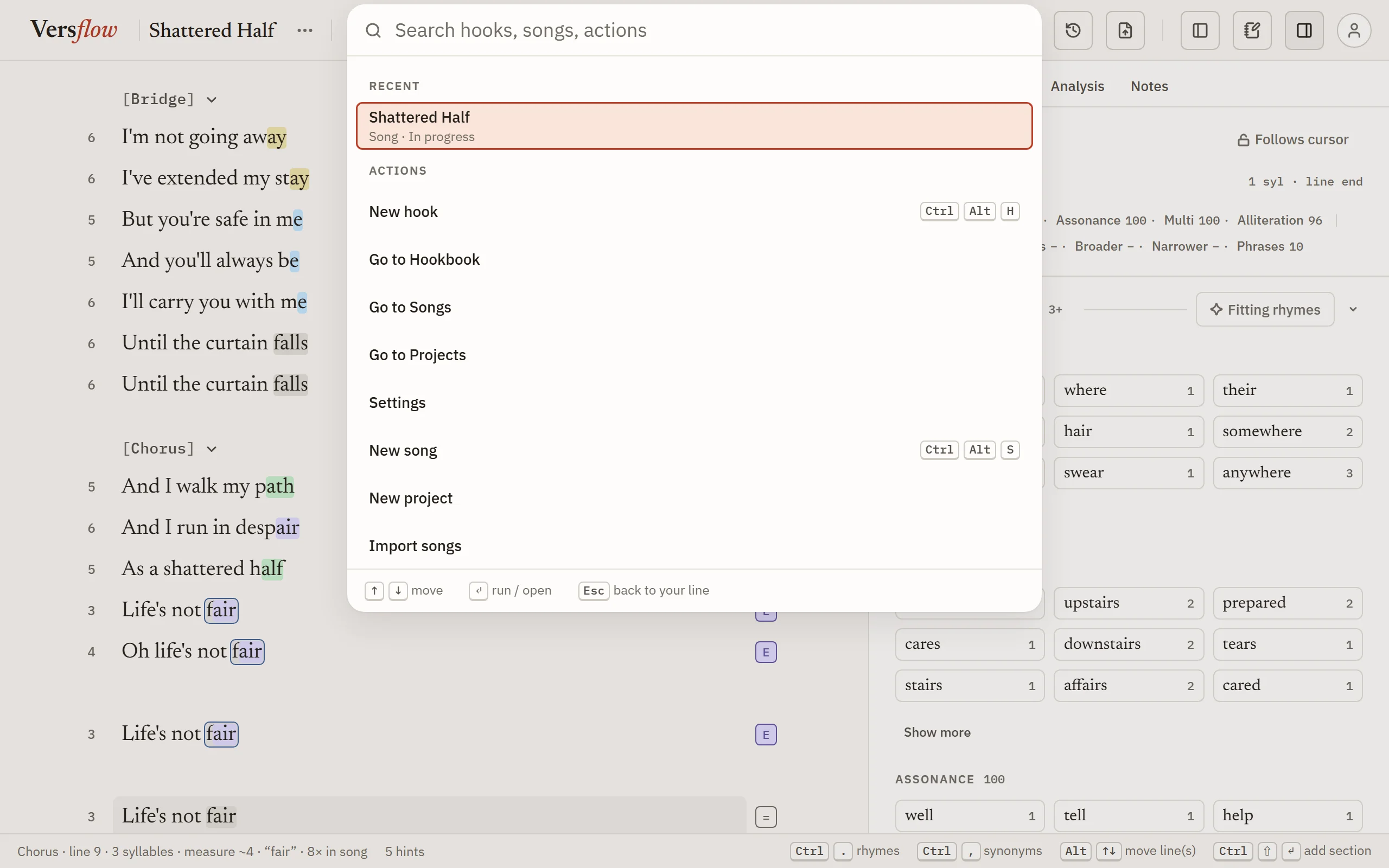
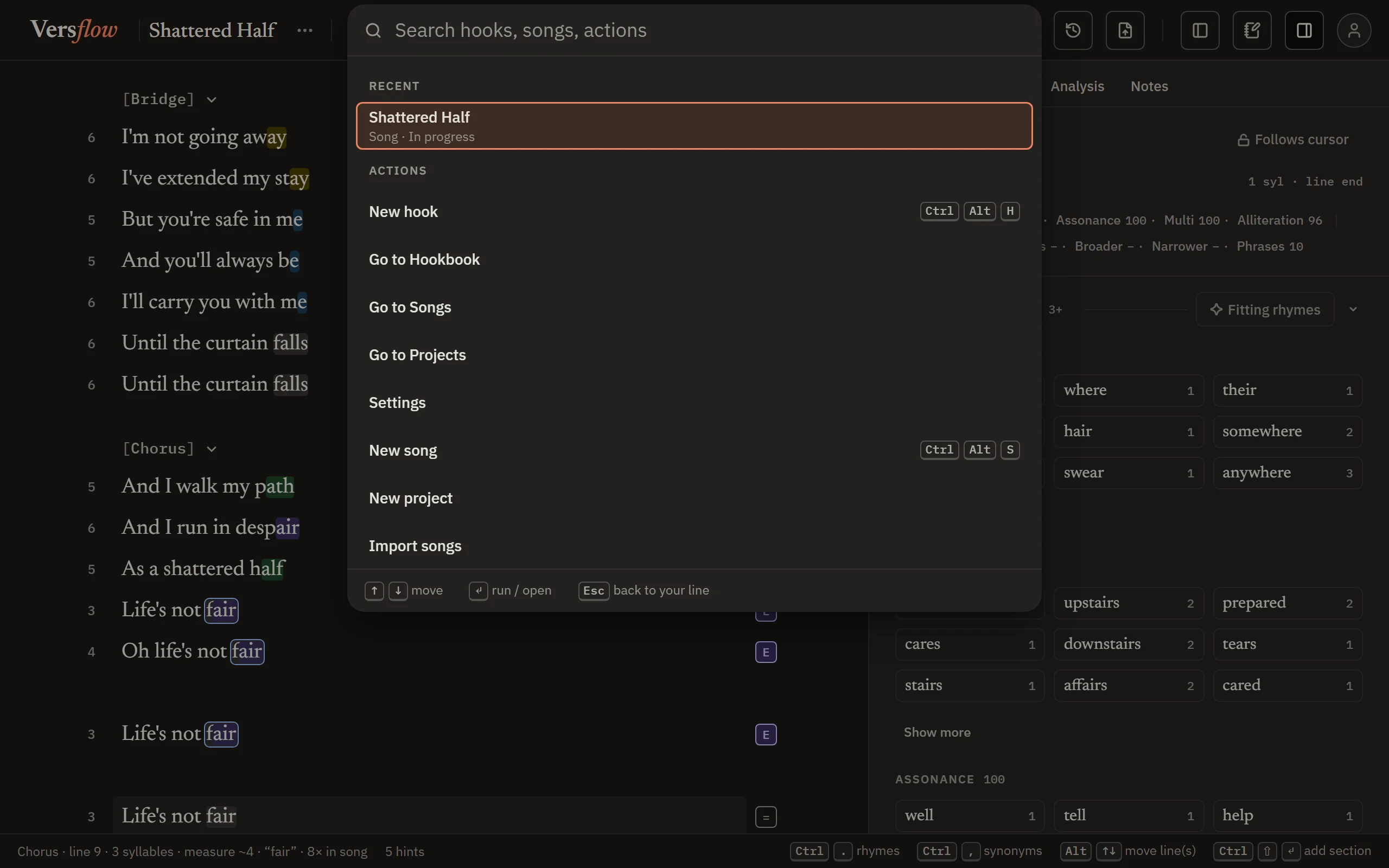
Ctrl + K finds everything
Press Ctrl + K and type a few letters: a song, a hook or an action. If you've forgotten a shortcut, find the action here and see its keys beside it.
While you write
- Ctrl + . rhymes, Ctrl + , synonyms
- Ctrl + ⇧ + ↵ add a section
- Alt + ↑ / ↓ move lines
- Ctrl + Alt + K set a chord
- Ctrl + Alt + C comment
- Ctrl + Alt + T show or hide stress marks
Around the song
- Ctrl + I show or hide the side panel
- Ctrl + E export
- Ctrl + S keep this version in the history, Ctrl + Alt + Z open the history
- Ctrl + Alt + F focus mode
- Ctrl + Alt + S new song, Ctrl + Alt + H new hook – from anywhere
In the lists
In the song list and the Hookbook, ↑ and ↓ choose, ↵ opens, / searches and N starts something new.
Focus mode
The icon with the four corners at the top right, or Ctrl + Alt + F, hides everything but your lyrics. Rhymes, synonyms and sections stay on their keys, and under View you can switch off every rhyme colour and syllable count. The same keys bring everything back.
Focus mode fills the whole screen. If you end the full screen through the browser (in Chrome and Edge, hold Esc), focus mode ends with it.
In focus mode only the paragraph you're writing in stays in full colour. The rest steps back but stays readable, so your eye stays on the lines you're working on. Under View → In focus mode (below In view) you can choose just the Line or All instead. Inside focus mode, use the command palette, for example "Focus mode: the line in view".
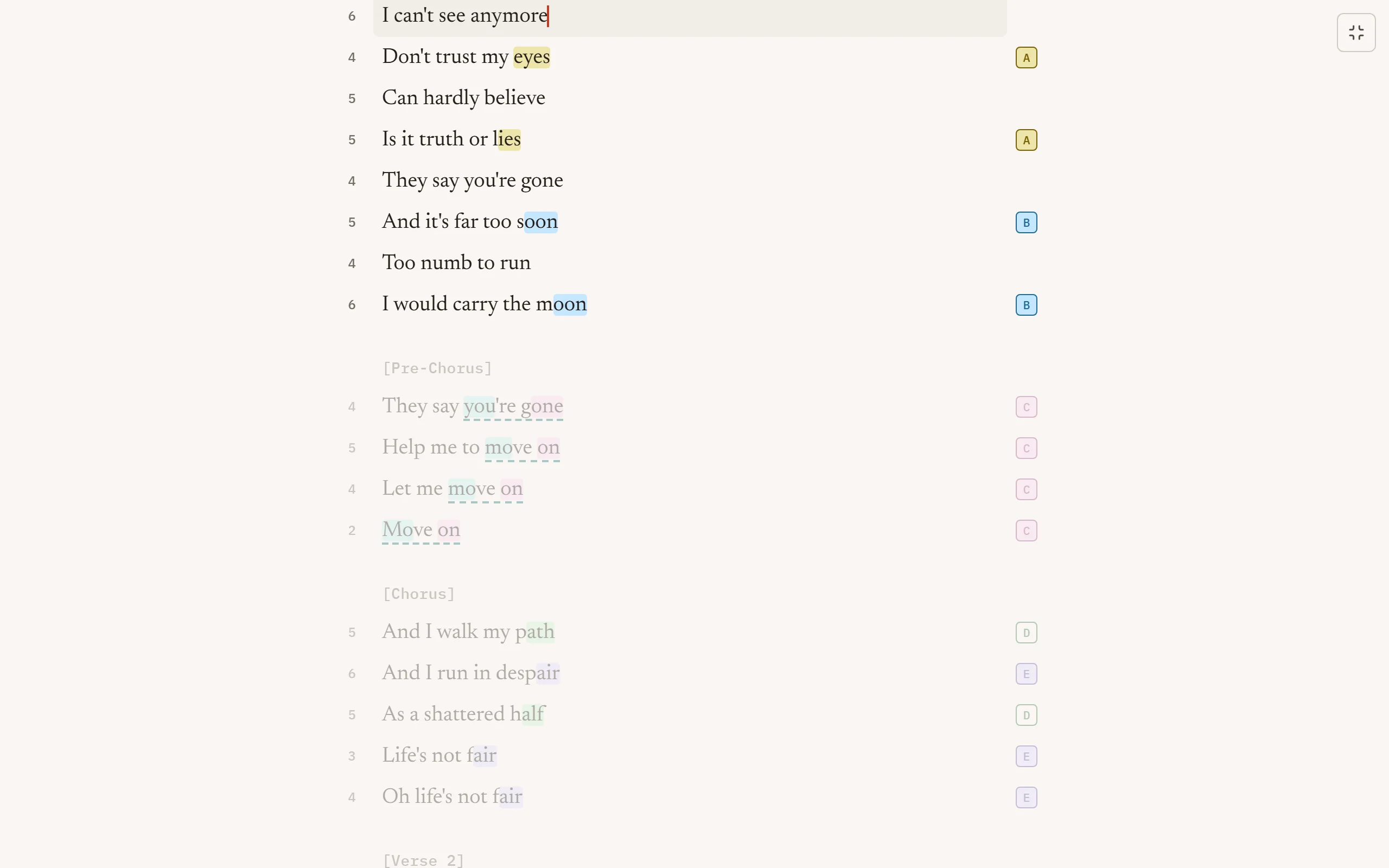
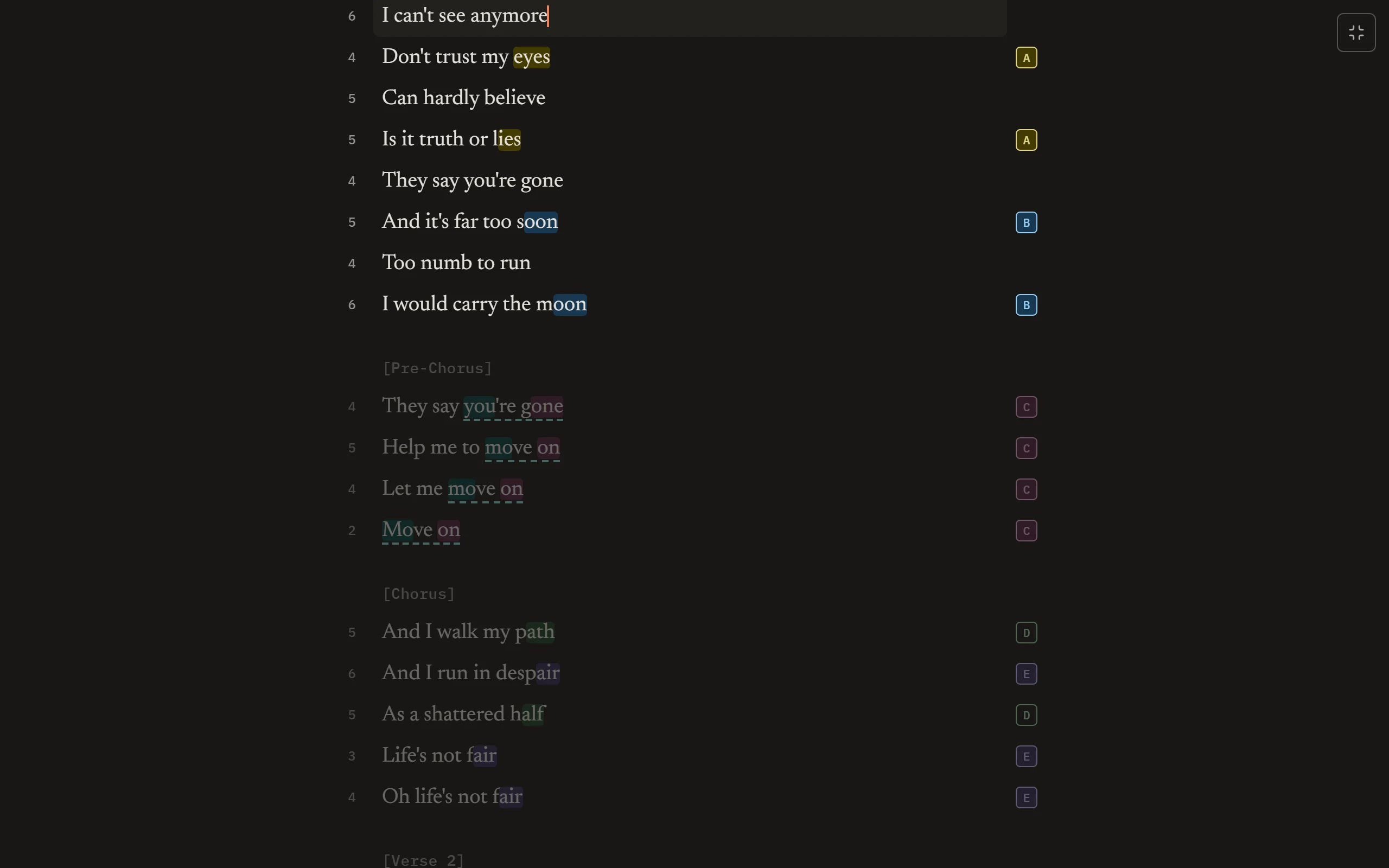
The normal editor has the same option. It's off there until you choose the line or the paragraph under View → In view → In the editor.
Good to know
- Shortcuts are also in the buttons' tooltips, written the way your computer names the keys. On a Mac, for example, you'll see ⌘ + K.