Projects
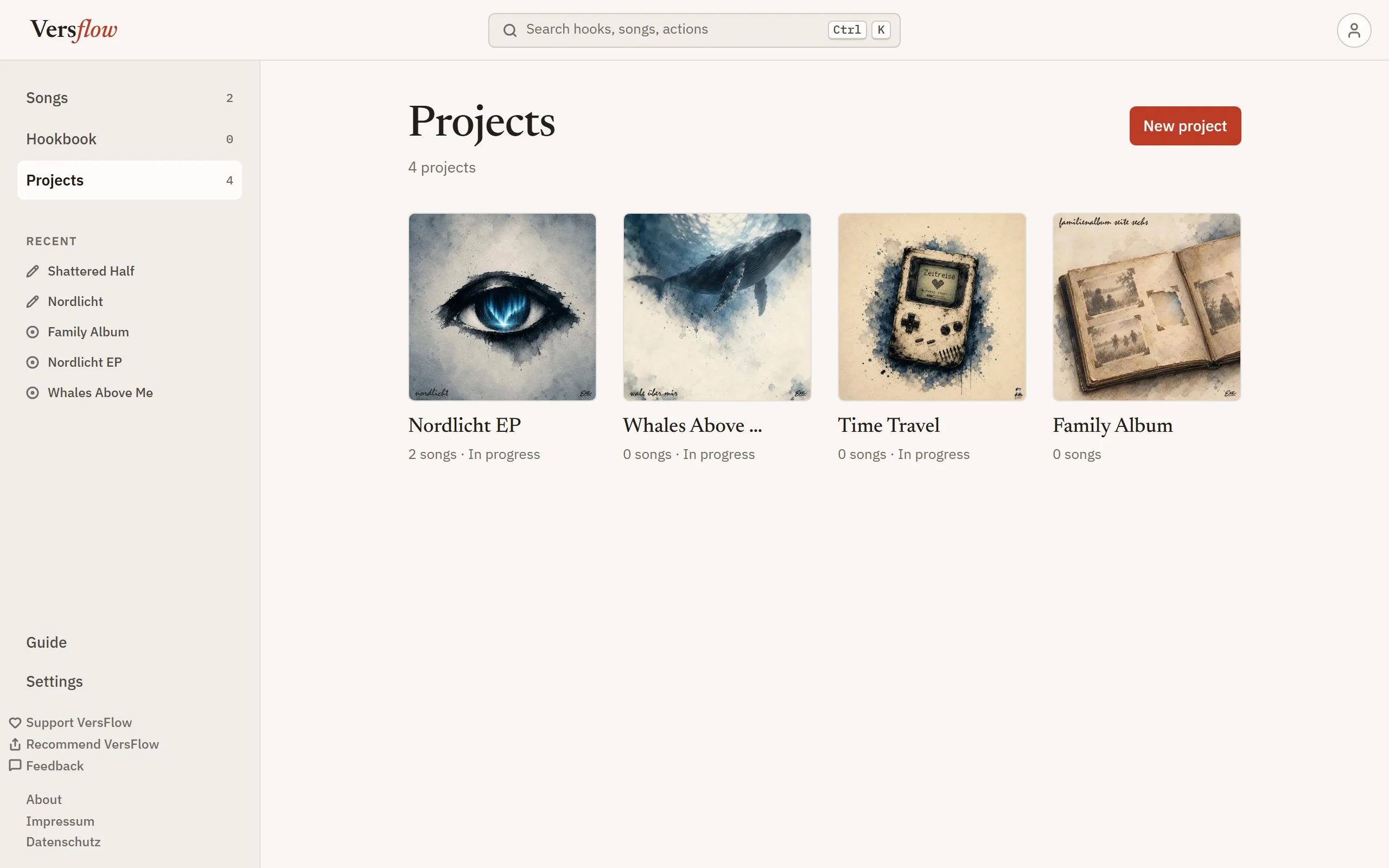
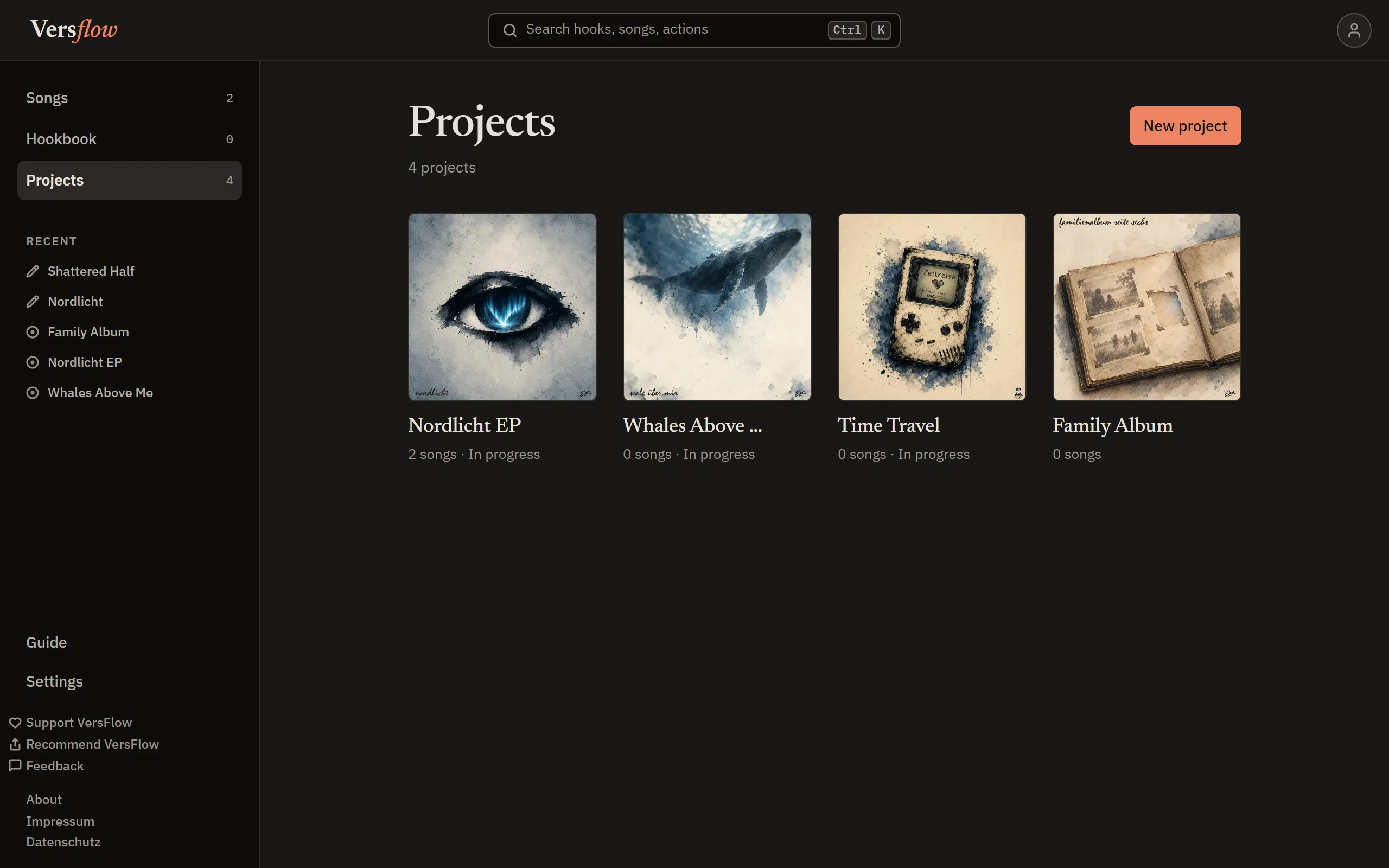
Sooner or later some songs belong together: an EP, an album, the set for the next gig, a poetry collection. A project keeps them together, in the order they're meant to be heard, with a cover you know it by at a glance.
How it works
- Click Projects in the sidebar, then New project, or press Ctrl + K and look for "New project".
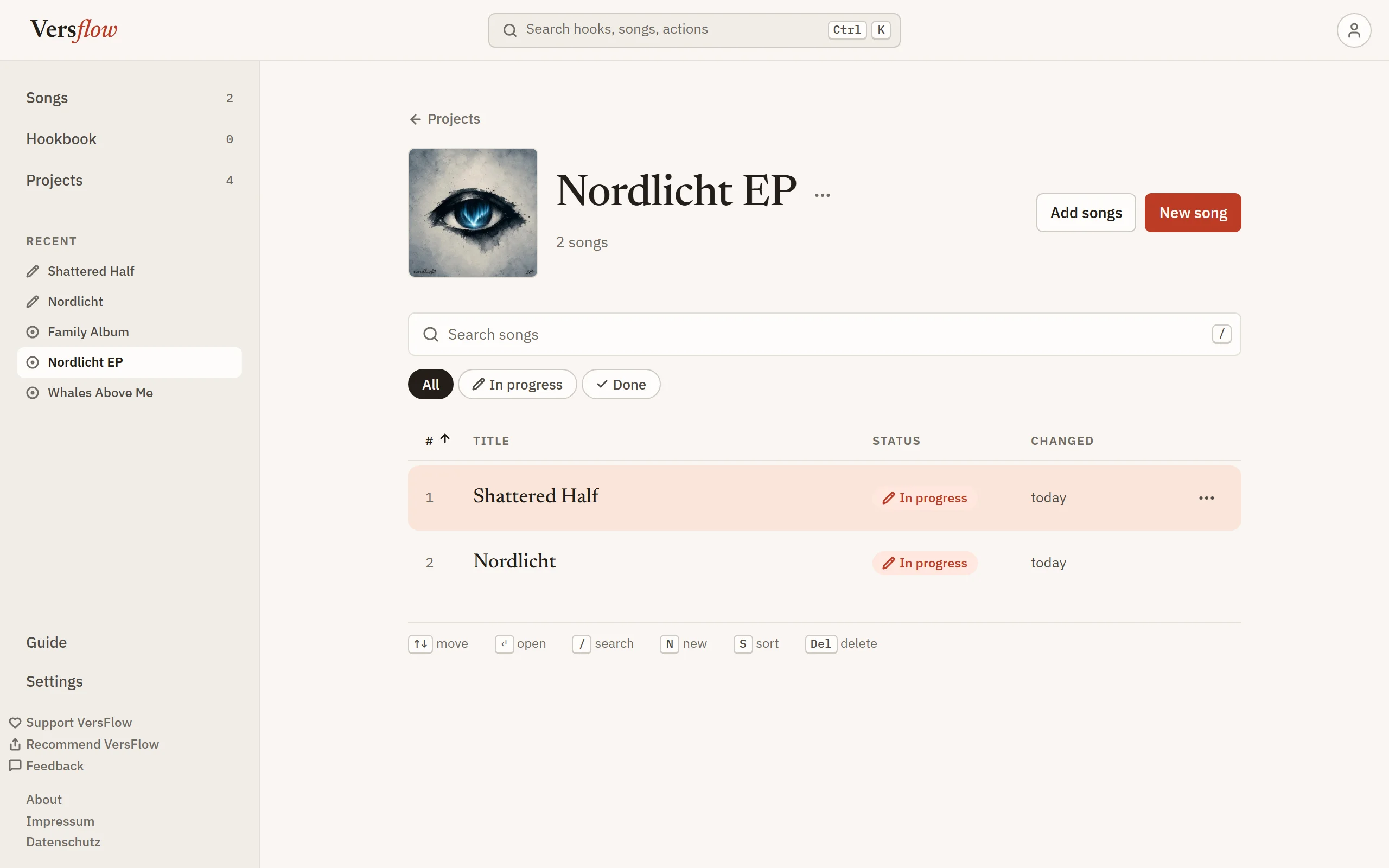
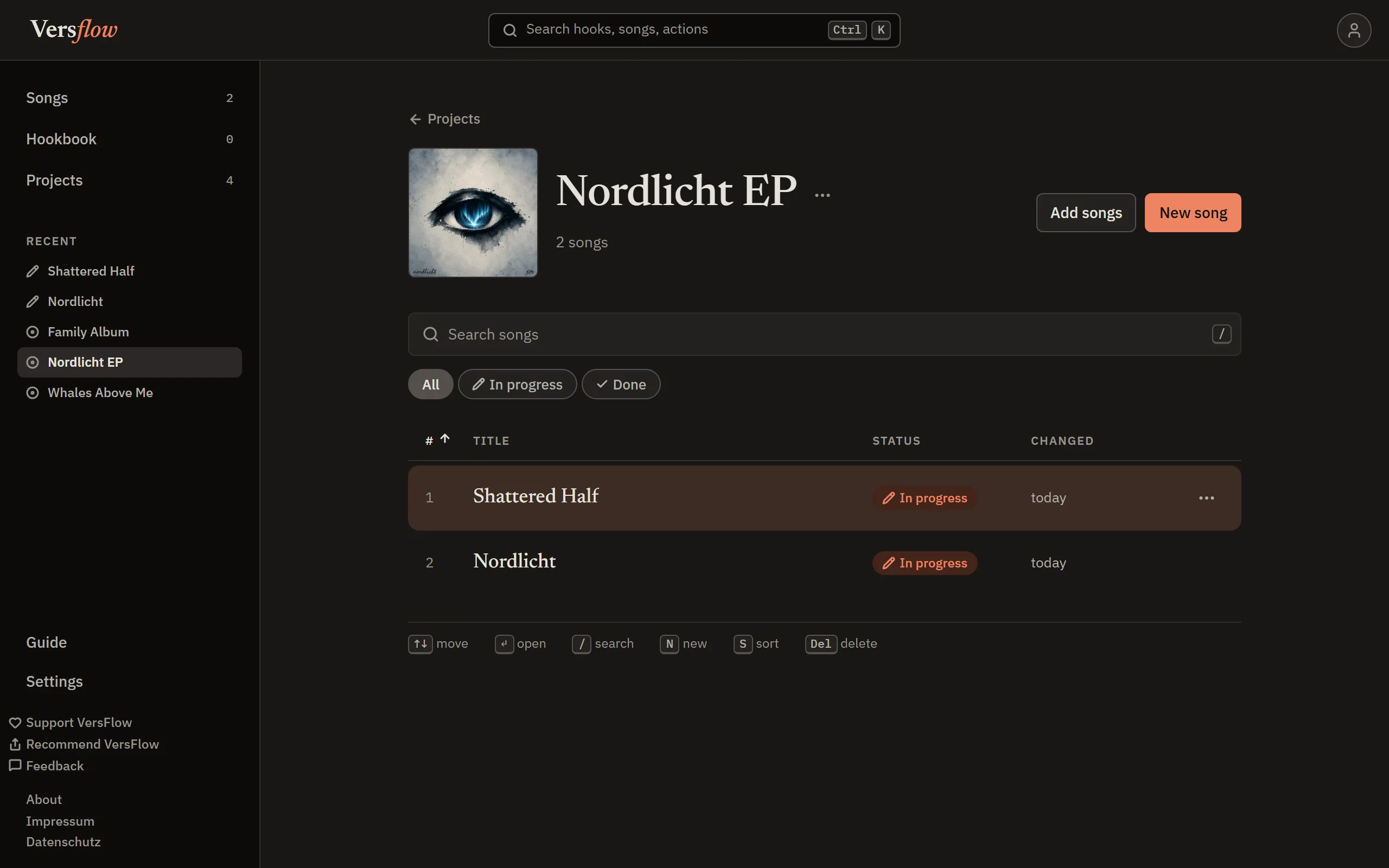
- Give the project a name, say "Nordlicht EP".
- Add songs picks songs you already have. New song starts one right in the project.
- Drag the songs to where they belong. The number in front is their place.
The cover
Click the square to the left of the name and pick an image. You can also drop an image on it or paste one with Ctrl + V. An image that isn't square is cropped from the middle. Without an image, the square shows the project's name. The × at the cover's corner takes it out again; Undo in the message brings it back. Each song can have a cover too, see Getting started.
Good to know
- When a project is finished, choose Mark as done in the ⋯ menu next to its name or on its cover. Done then stands next to its number of songs. The overview shows the projects in progress first, the one changed last at the top.
- Drop files with lyrics on a project page, and the songs go into that project. More in Getting started.
- A song can be on several projects, for example on the EP and in the live set.
- You can also add a song to a project from its ⋯ menu in the song list, or from Song info.
- The projects you're working on are in the sidebar under Recent. A cover's ⋯ menu pins a project there, or deletes it.
- Delete a project and its songs stay.
- With an account, your projects and their covers are on all your devices.