Getting started
VersFlow is an editor for lyrics. You write; VersFlow shows you rhymes, syllables and the shape of your song while you do. It never writes a line for you.
How it works
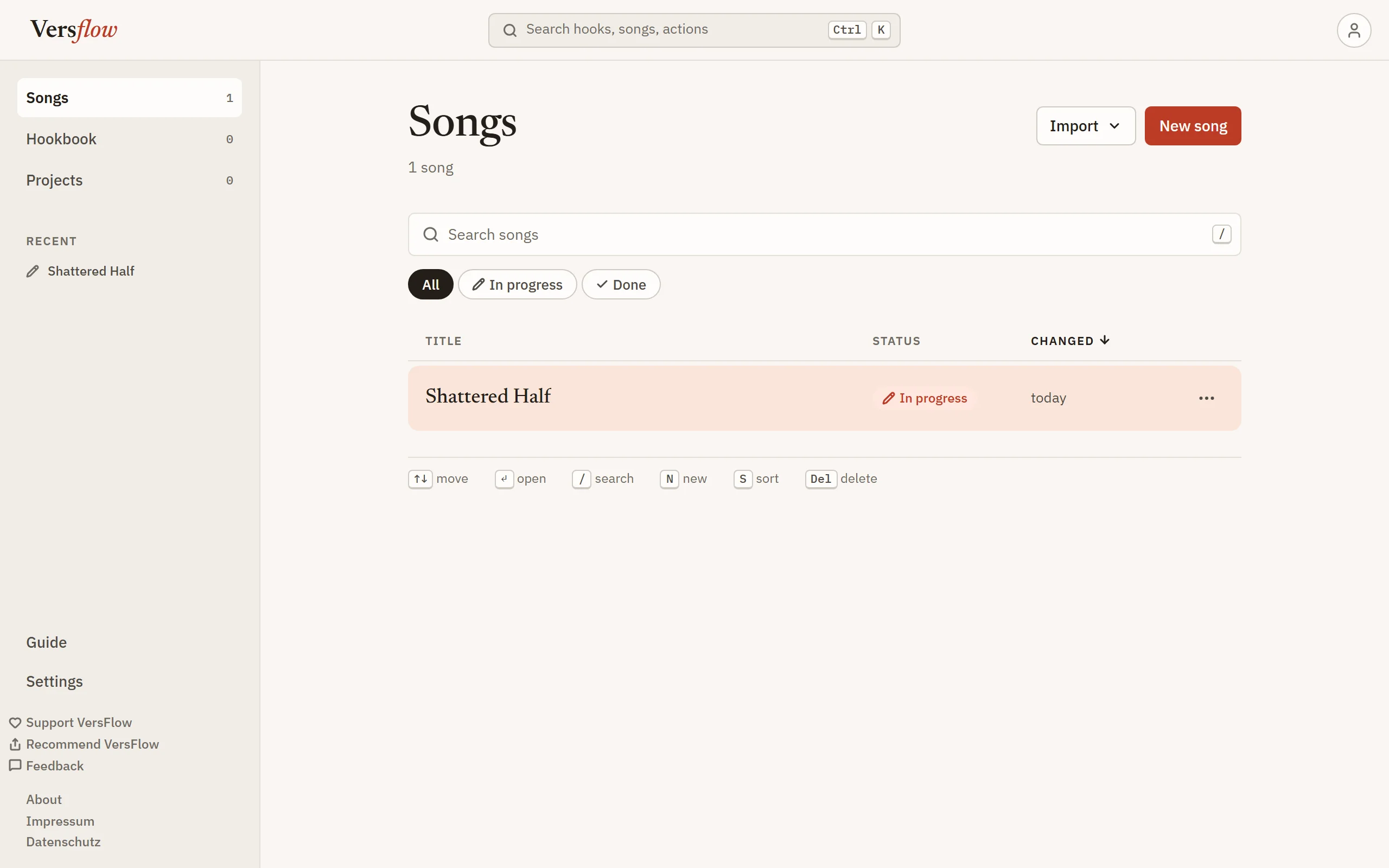
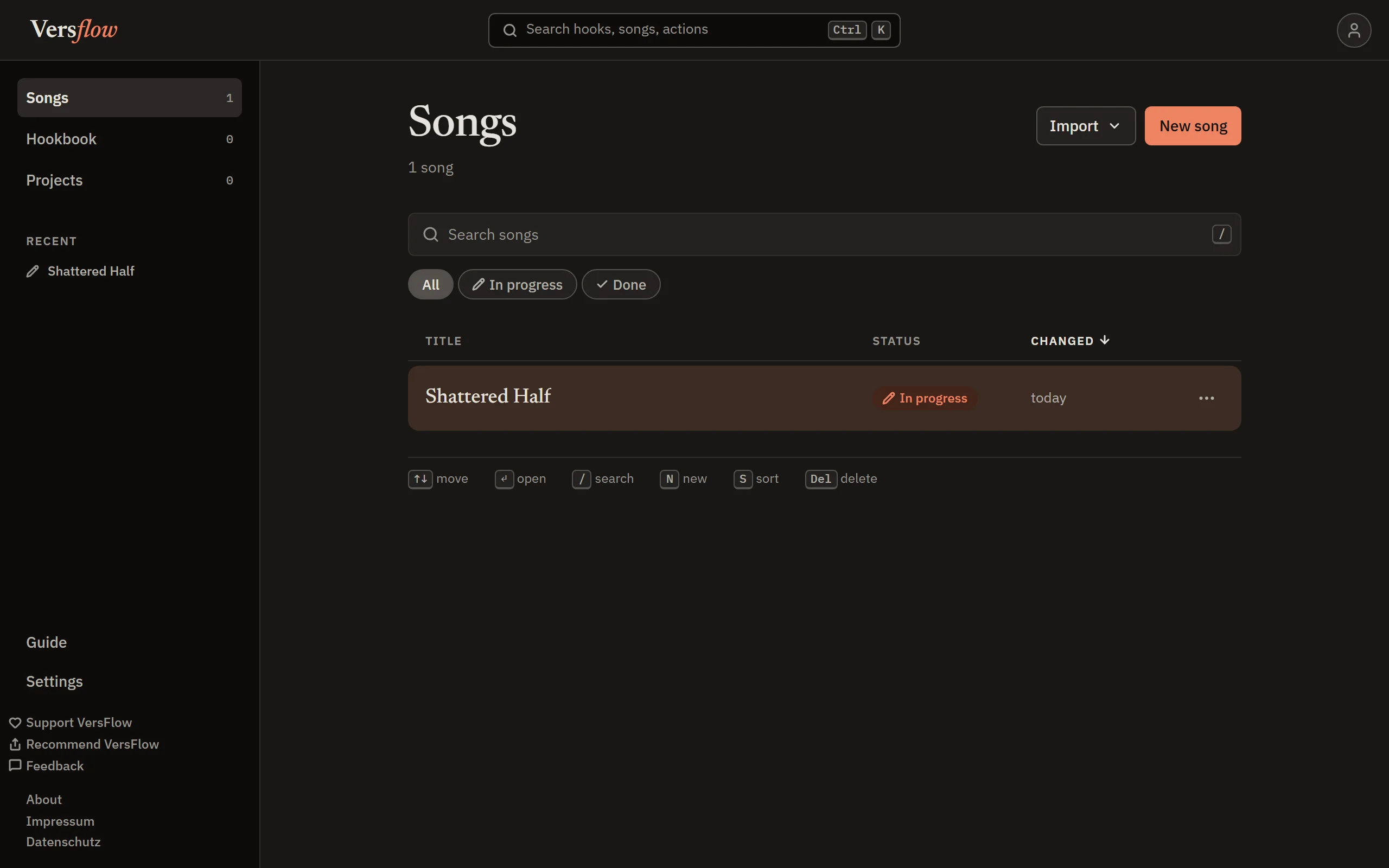
- Open versflow.de/songs. There's no account to create – VersFlow runs in your browser.
- Click New song or press N. The caret is already in the lyrics. When you open a song again, it's where you left off, or else at the end of the lyrics, so you write straight on.
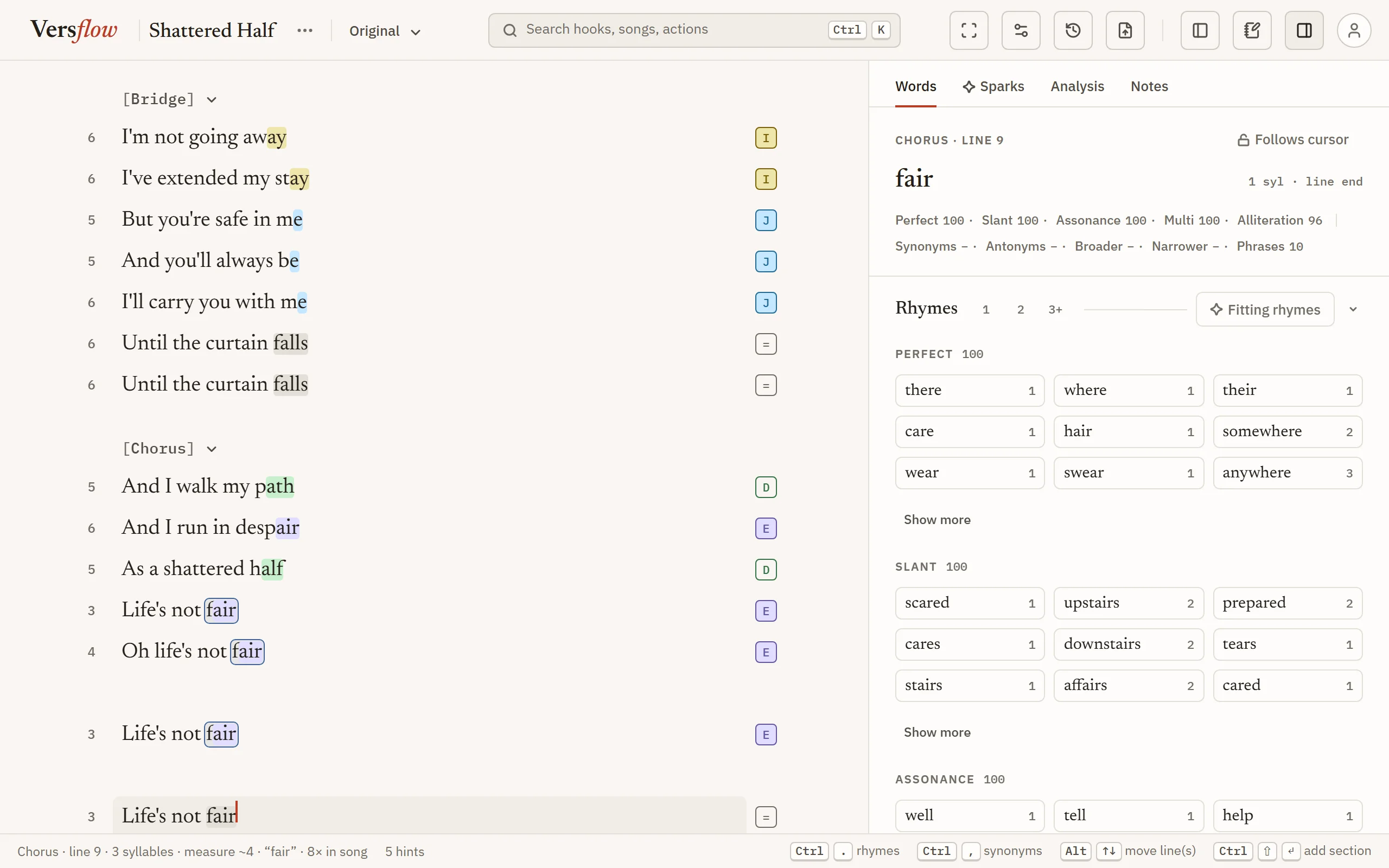
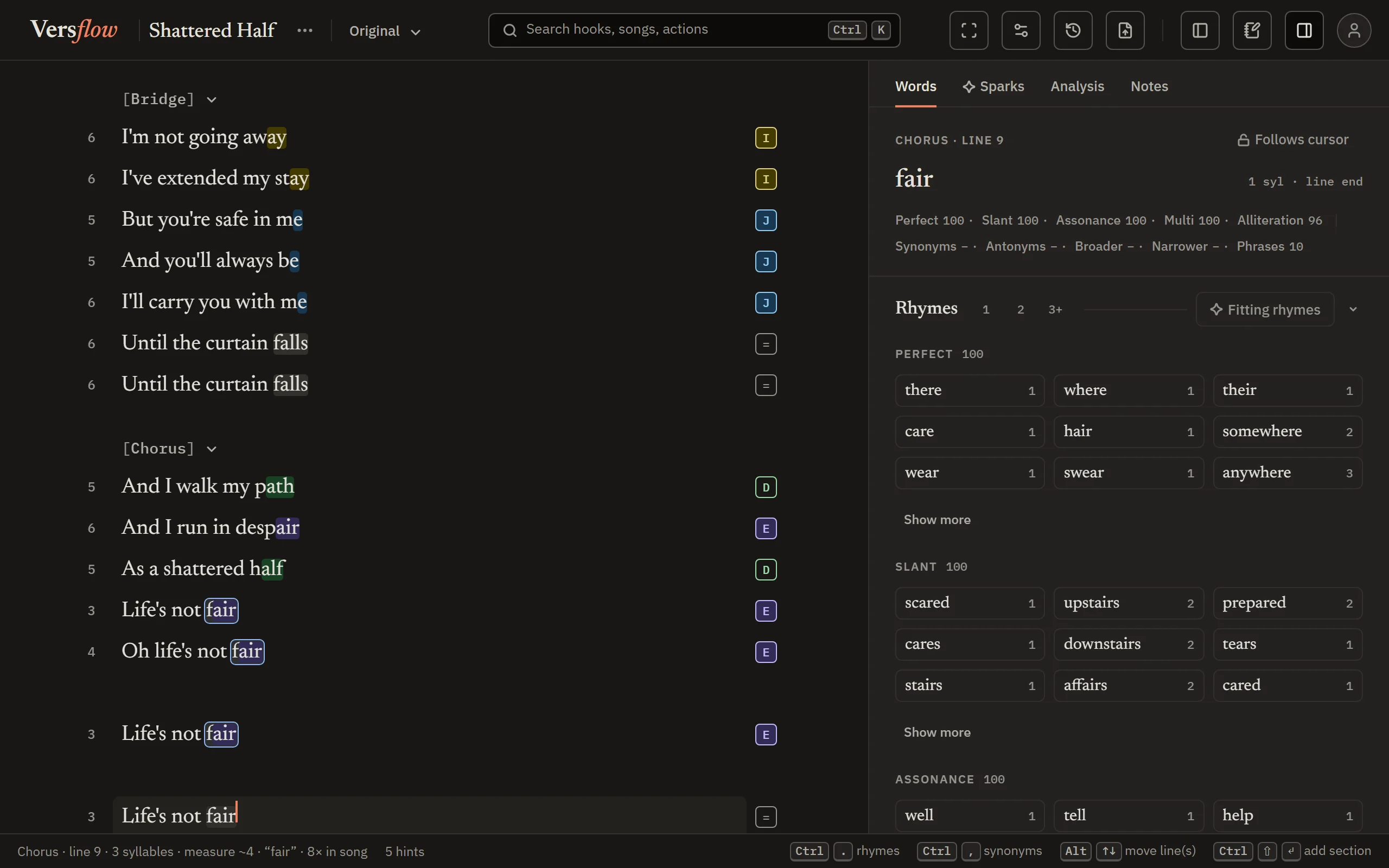
- Start writing. As you type, the number on the left counts the syllables of each line, and a letter on the right shows which line endings rhyme.
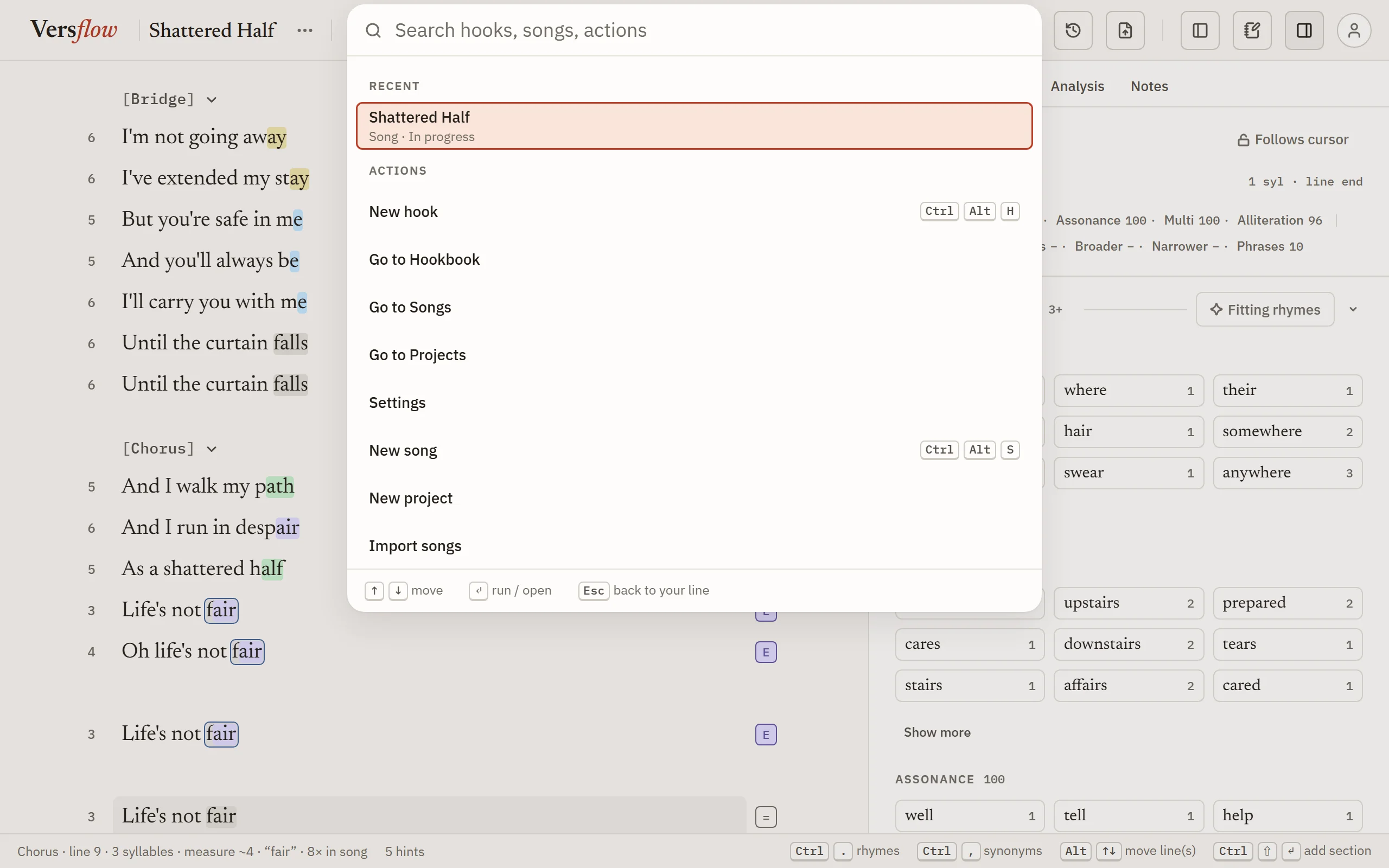
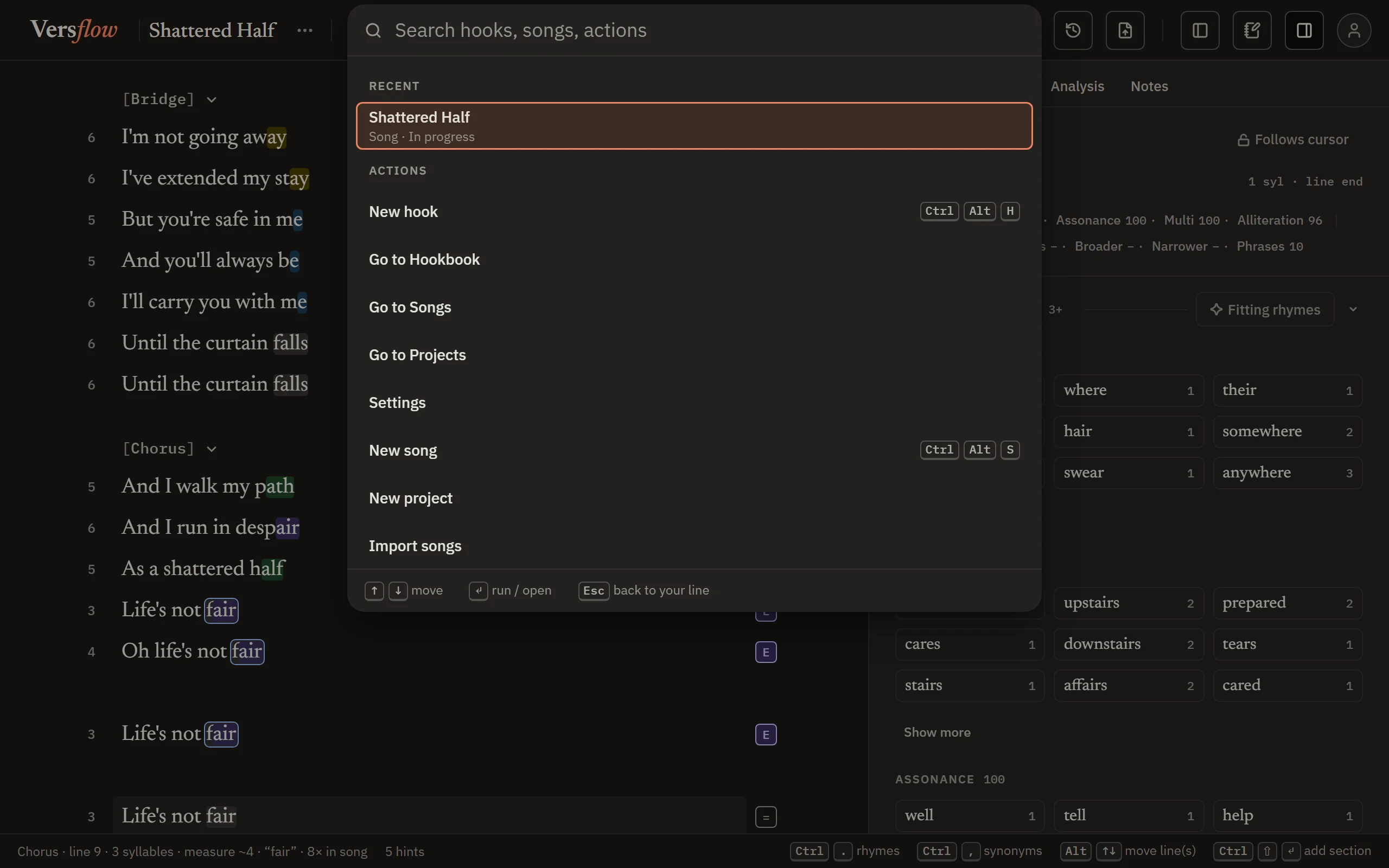
- Press Ctrl + K (⌘ + K on a Mac) whenever you're looking for something: a song, a hook or an action. Type a few letters; ↵ runs it.
Bring your songs
Your lyrics are in files already? Then there's no pasting them one by one. Drag them onto the song list: one file, several, or a whole folder. Or click Import and choose Choose files… or Choose a folder…. VersFlow reads .txt, .md and .docx files, in subfolders too. The files stay on your device.
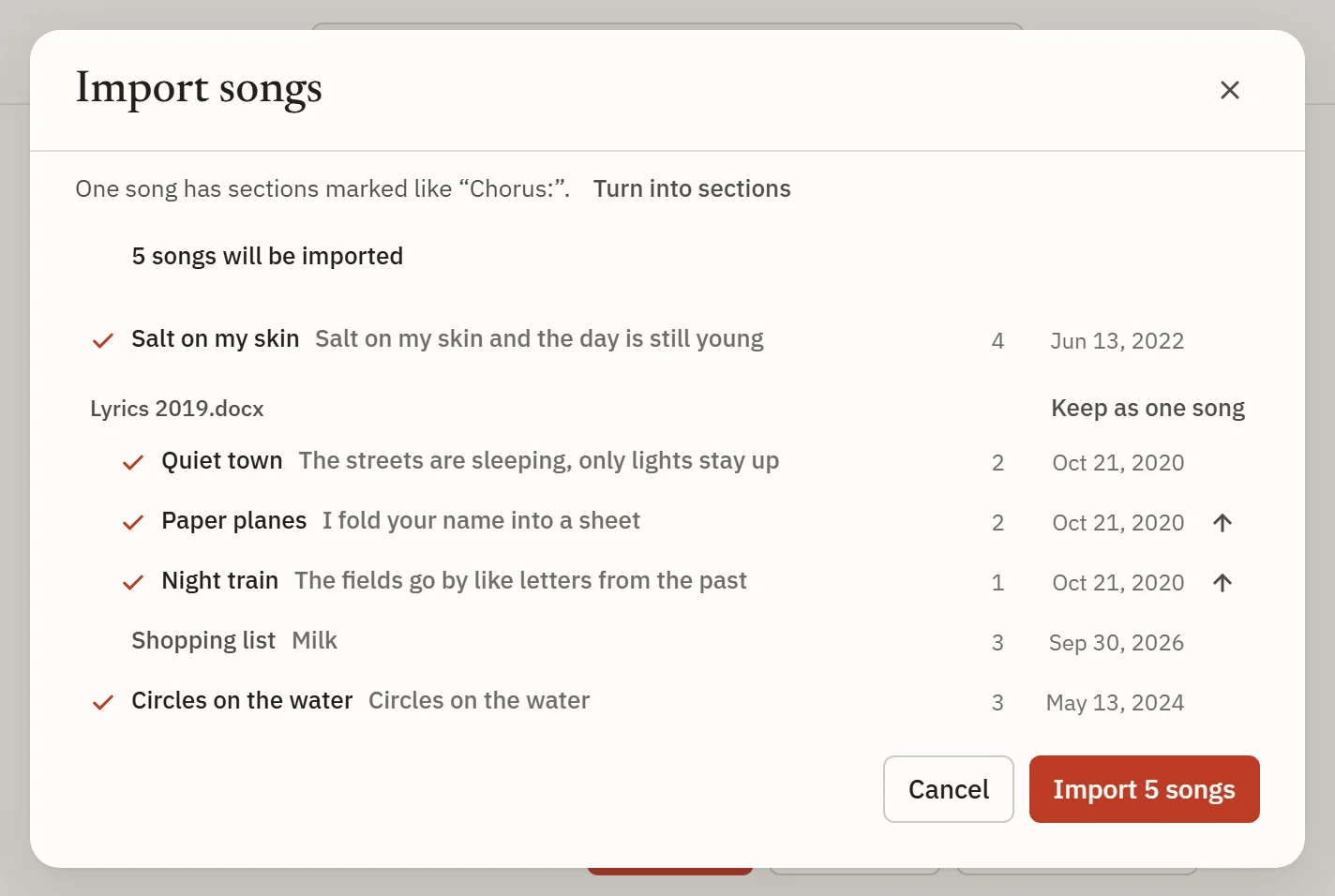
- Each file becomes a song. Its title comes from the file name, without a date or track number in front: "2019-04-12 Northern Light v2.txt" becomes "Northern Light v2". When the name says nothing, like "Untitled 3" or "New Note", VersFlow takes the first line. Every song keeps its file's date.
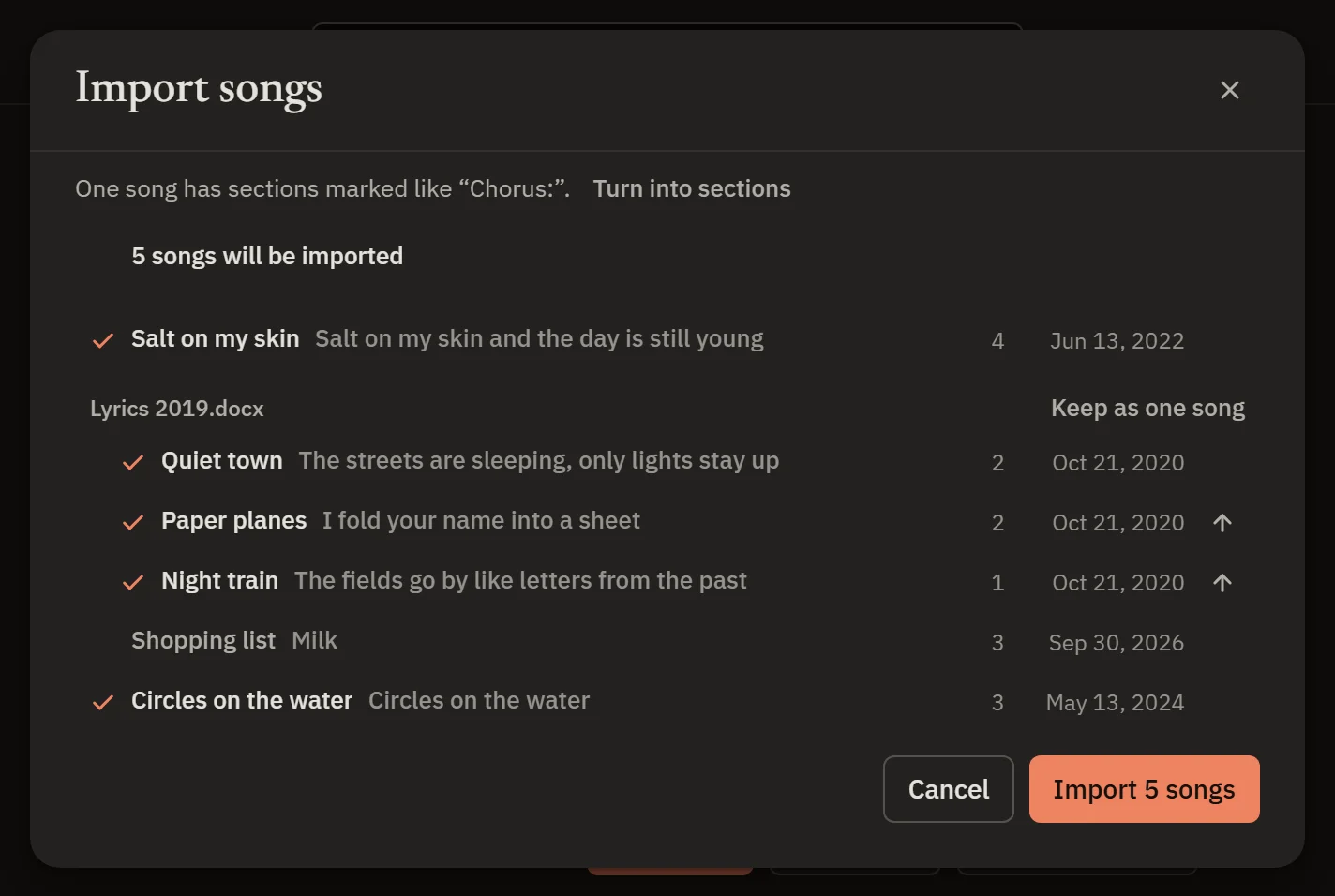
- Before anything is stored, you see the list. Untick whatever isn't a lyric. Songs you already have are marked already there and left unticked, so you can import the same folder again later.
- Import songs puts them all into a new project "Imported …". Drop the files on a project page instead, and they go into that project.
- Right afterwards, Undo in the message at the bottom takes the import back. Songs you've changed in the meantime stay.
VersFlow doesn't read .doc, .pages or PDF files. Save them as .docx and it works.
Many songs in one file
When all your lyrics are in one document, VersFlow splits it where you set a boundary yourself: at headings (in Word a style like "Heading 1" or "Title", in Markdown #), at page breaks, and at separator lines like ---. The heading becomes the song's title. Blank lines never split, however many there are.
In the list, the songs of such a file stand under its name. If VersFlow split where there is no boundary, join the song to the one above: the arrow at the end of its row. A second click splits them again. Keep as one song keeps the whole file as one song.
Sections like "Chorus:"
If you've named your sections yourself so far, like "Chorus:" or "(Verse 2)", the list tells you. A click on Turn into sections makes them [Chorus] and [Verse 2], the way VersFlow writes sections. Without the click your text stays as it is. VersFlow offers the same when you paste such text into a song.
From a notes app or a PDF
If your lyrics live in a notes app, in PDFs or in a document that separates songs only with blank lines, your AI app can help. Connect it to VersFlow. If it can reach your notes, or you give it the file, ask it something like:
Bring my lyrics from the "Songs" folder in my notes over to VersFlow, each as a song of its own, with the note's title and the text word for word.
VersFlow stores exactly what the app sends, and the songs are in your song list afterwards.
What you see
- The number on the left: the line's syllables. More in Counting syllables.
- The letter on the right: lines with the same letter rhyme, and the rhyme is shaded in its colour. More in Finding rhymes.
- The side panel: Words, Analysis, Notes and Sparks. Ctrl + I shows or hides it.
- Top right: View (what the editor colours), History and Export.
Show and hide
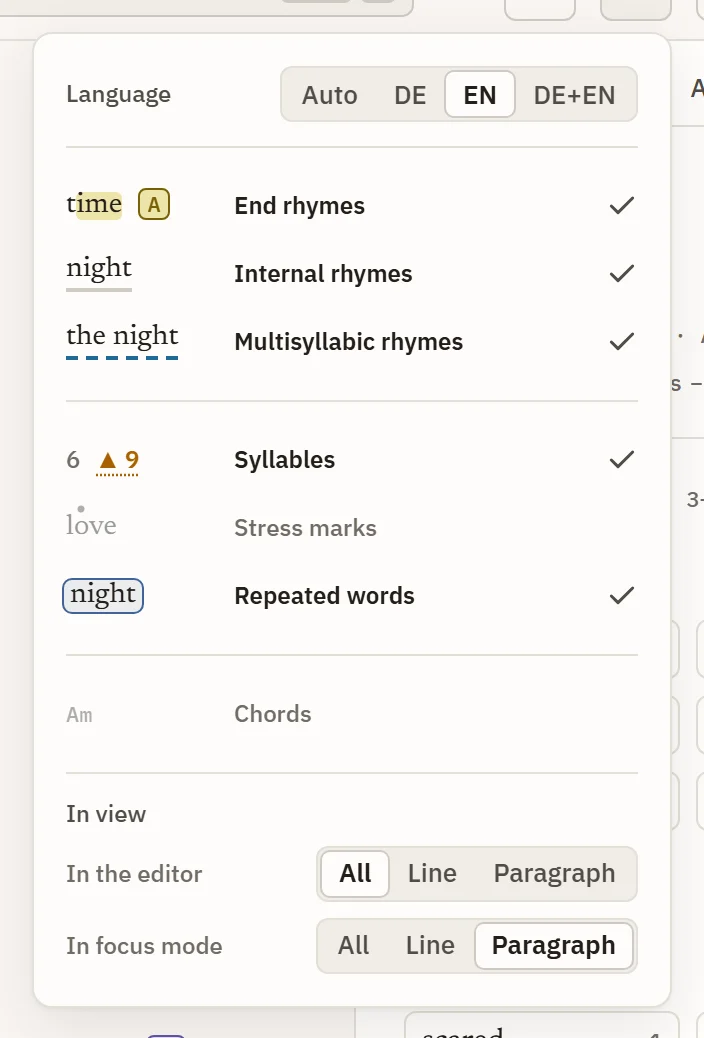
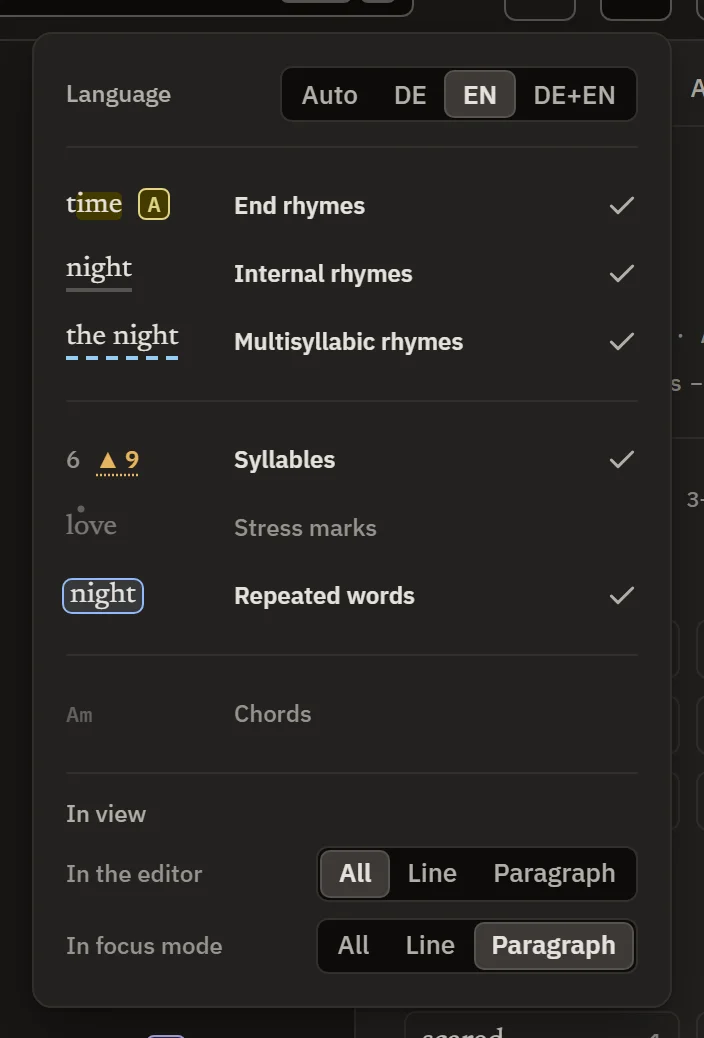
Not everyone wants every colour while writing. At the top right, View (the icon with the sliders) opens a menu. At the top you set the song's language: Auto finds it by itself and shows what it found, or you pick DE, EN or DE+EN.
Below it, every mark of the editor stands as a small sample: end rhymes, internal rhymes, multisyllabic rhymes, syllables, stress marks, repeated words and chords. A click on the row switches it on or off. What is on shows in colour with a check, what is off in grey. So the menu also tells you what the colours and lines in the text mean.
In view keeps only the line or paragraph at the cursor in full colour, in the editor and in focus mode each on its own. Light or dark is in the Settings.
At the right of the top bar, three buttons show and hide the outline, your sketches and the side panel, depending on how much room you need.
The cover of a song
Each song can have a cover. You set it in Song info (the ⋯ menu next to the title): click the square to the left of the title and pick an image, drop one on it or paste one with Ctrl + V. The × at its corner takes it out again.
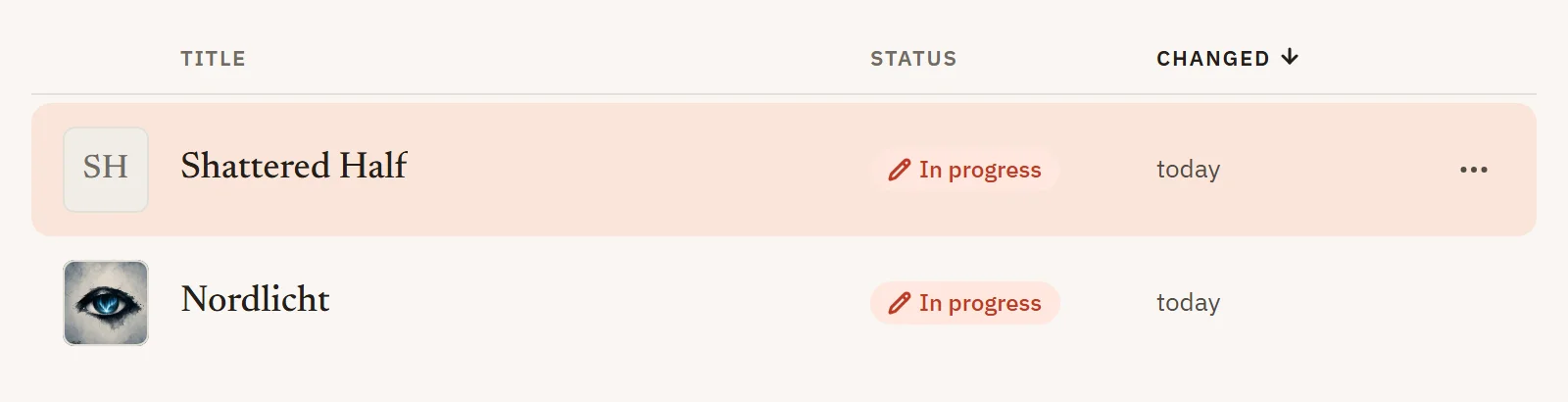
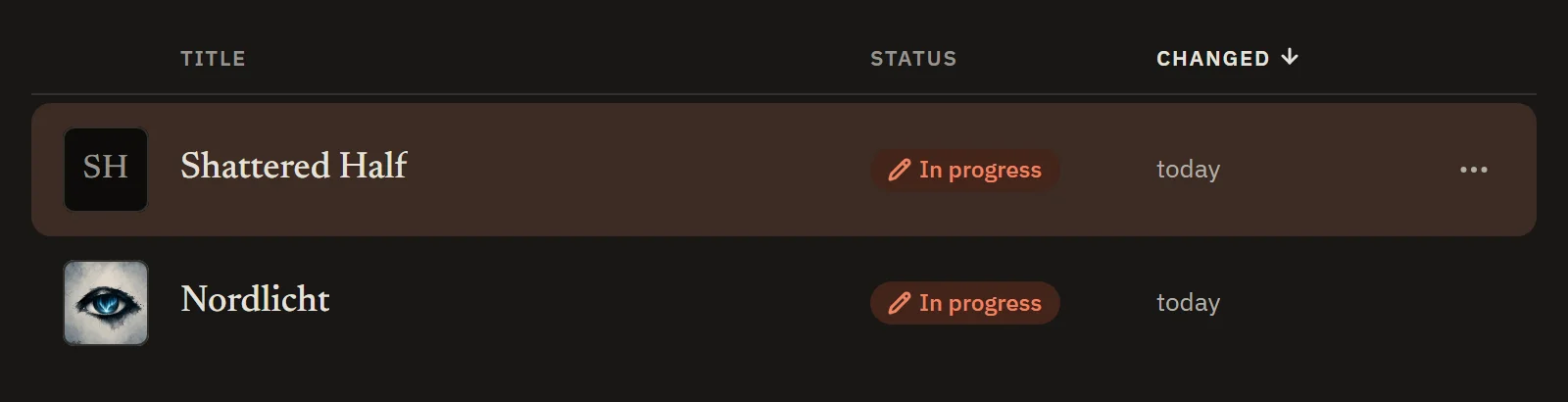
Once any of your songs has a cover, the song list shows a column for it before each title. Songs without one show their initials there, as a project without a cover shows its name.
If a song's folder already holds a cover.png, VersFlow takes it once by itself when you open the song list on your PC. If the song is linked to Suno and has no cover file, the cover comes along when you fetch from Suno. After that nothing replaces your cover on its own, and a cover you removed doesn't come back. With an account, the cover is on all your devices.
Good to know
- When a song is finished, choose Mark as done in its ⋯ menu in the song list. The buttons above the list show only the songs In progress or the Done ones.
- Your songs are stored in the browser on your device and saved with every change. To keep a copy, press Ctrl + K → "Export backup file".
- A free account puts your songs on all your devices and lets you share a song with others.
- On a PC you can install VersFlow like an app, from the Microsoft Store or straight from your browser: its own window, and it works offline. On Windows, Settings → Data & backup → Install opens the Microsoft Store when your songs come along: always in Edge, in other browsers with your account. Songs from another browser come along with your account or a backup file.
- If you got VersFlow from the Microsoft Store or Google Play, Rate VersFlow sits below Settings. It takes you straight to VersFlow in the store, where you can leave stars and a few words.
- Want to show VersFlow to someone? On a PC, Recommend VersFlow sits at the bottom left below "Support VersFlow"; on your phone, at the very bottom of Settings. It opens your device's share menu with a few lines and the link to versflow.de. Where the browser has no share menu, VersFlow copies the text for you to paste into a chat or an email.
- Shortcuts are in the tooltips. Hover over a button to see them.
- Notice something, or miss something? Tell me: Feedback sits at the bottom of the sidebar, and on a phone at the bottom of Settings. Your message reaches me as an email, with only the version, browser and screen, never your lyrics. Leave an email address and I can reply.
On your phone
Writing works best on a PC. The phone is for when you're out: catching a title, a line or a melody before it's gone, and reading a song again.
- At the bottom you switch between Songs, Hookbook and Projects. Settings opens from your account at the top right.
- Back works as in any app: it closes what's open, then takes you towards Songs, each time to the spot where you were. From Songs it leaves VersFlow. In a song, the VersFlow name at the top takes you straight to Songs.
- Install it: on Android, tap ⋮ → "Install app" in Chrome; on an iPhone, tap Share → "Add to Home Screen" in Safari. VersFlow then has its own icon and works without a connection.
- A hook in a moment: on Android, press and hold the VersFlow icon and choose + Hook. The new hook opens with the cursor in its title. Below it, Record catches the melody right away.
- From other apps: on Android, select some text, tap Share and choose VersFlow. It becomes a hook: the first line is its title, and a link that came along is under Links.
- Rhymes and synonyms: tap Rhymes or Synonyms at the bottom. The bar stays open until you close it with ×. Tapping a suggestion puts it in, the next one swaps it. Tap another word in the text and the bar shows suggestions for that word.
- Moving lines: press and hold a line's syllable count, then drag the line to its new place. Without the hold, you simply scroll.
- iPhone: Safari may delete a website's data when you haven't opened it for seven days. That doesn't apply to the installed app, and with an account your songs are in the cloud as well.