Exporting
Every destination wants your lyrics a little differently. Suno needs the section tags and your Styles; Spotify and Apple Music want clean lyrics without brackets; Genius wants English section tags; YouTube wants a description. VersFlow makes each of these versions from one text, and your original stays as it is.
How it works
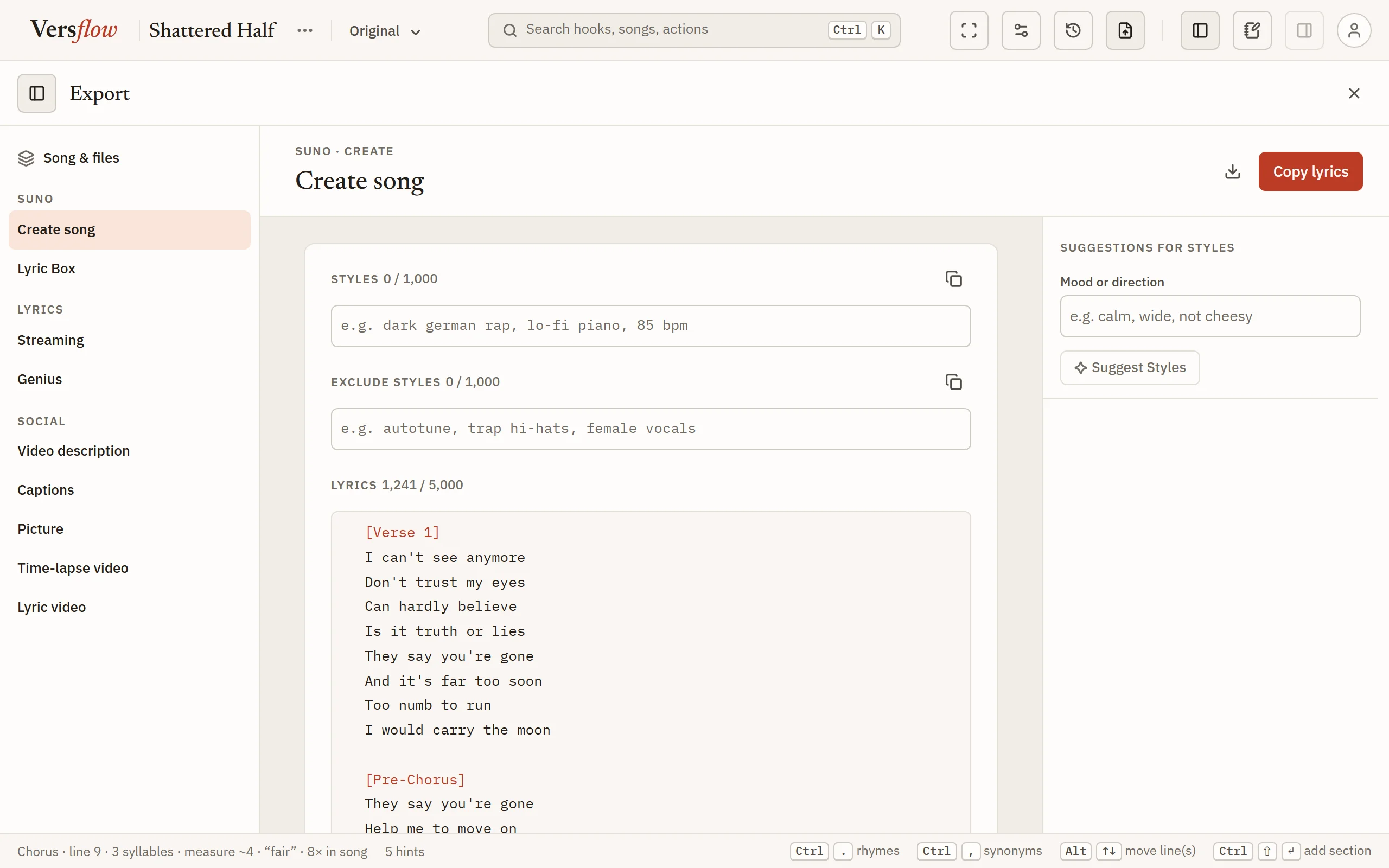
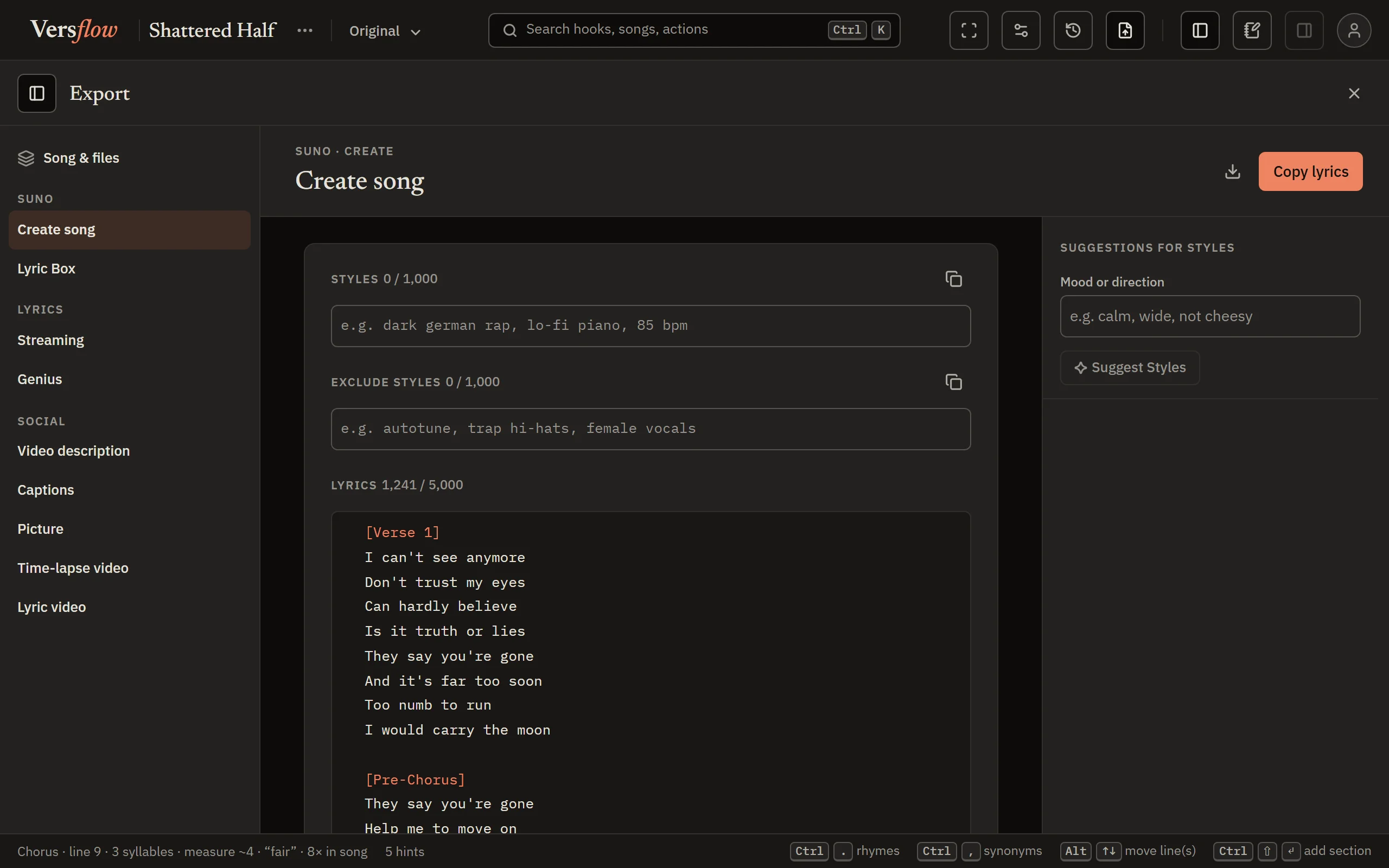
- Open your song and click Export at the top right, or press Ctrl + E. The export opens in place of your lyrics, the way the History does.
- Choose the destination on the left. Hover over it and the tooltip says what it's for. Alt + 1 to 9 jump straight to one.
- Every destination looks the same: at the top it says where it goes, with the button that sends it out on the right, such as Copy lyrics or Download video. In the middle you see the result as the platform shows it, captions and videos on a phone. On the right you set what changes it. Single fields, such as Styles, you copy with the icon beside them.
- The ✕ at the top right, Esc or the browser's Back take you back to your lyrics.
On a phone you open the export from the ⋯ menu, and choose the destination in the bar at the top.
Song & files
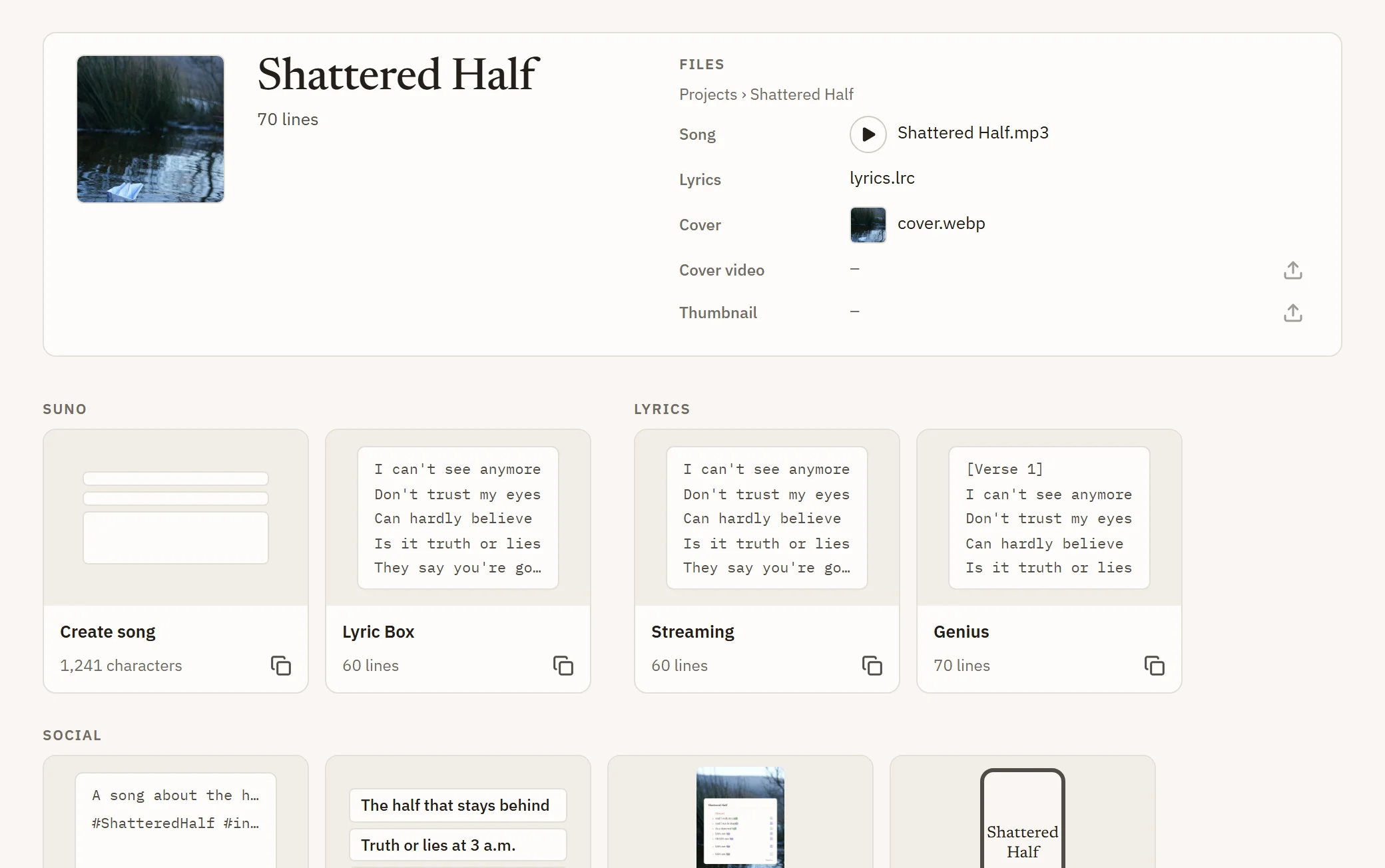
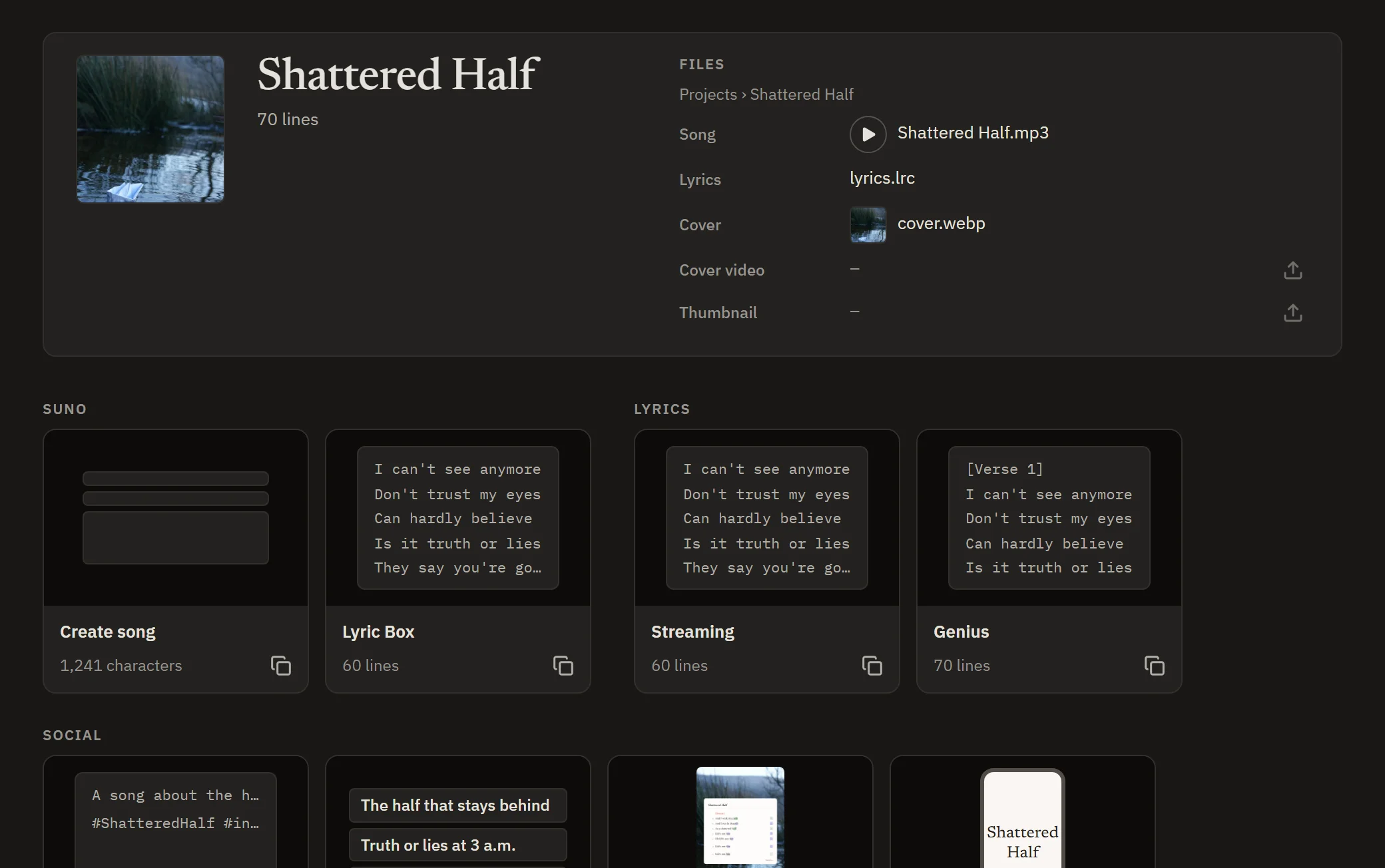
At the very top of the list is Song & files. It shows your song with the files of its folder, and below it every destination as a tile, each with a small preview of what would go out right now. The icon at the foot of a tile copies a text or downloads the picture without opening the destination. A click on the tile opens it. A tile that says "Empty so far" opens its destination with the star, and there you have something suggested.
The destinations
Suno
- Create song: everything you need to generate in Suno, in Suno's order: title, Styles, Exclude styles and the lyrics with tags like
[Verse 1]and[Chorus]. Title, Styles and Exclude styles you copy one by one, the lyrics with the button at the top. - Lyric Box: the text for the Lyric Box of a published song, laid out by your template, for example with caption and copyright.
You write Styles and Exclude styles right under Create song, the caption under Lyric Box. They belong to the song and are there again next time.
Lyrics
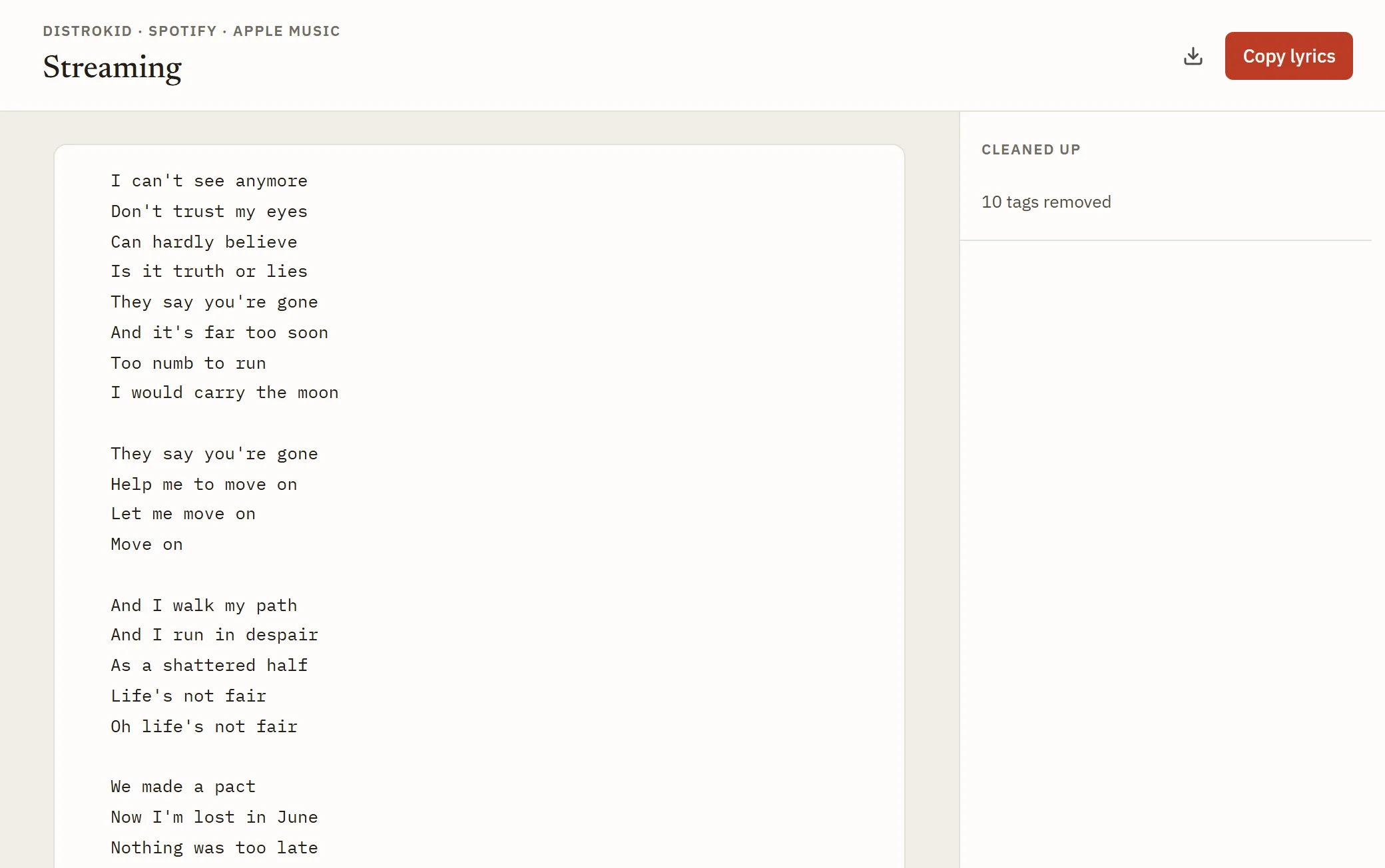
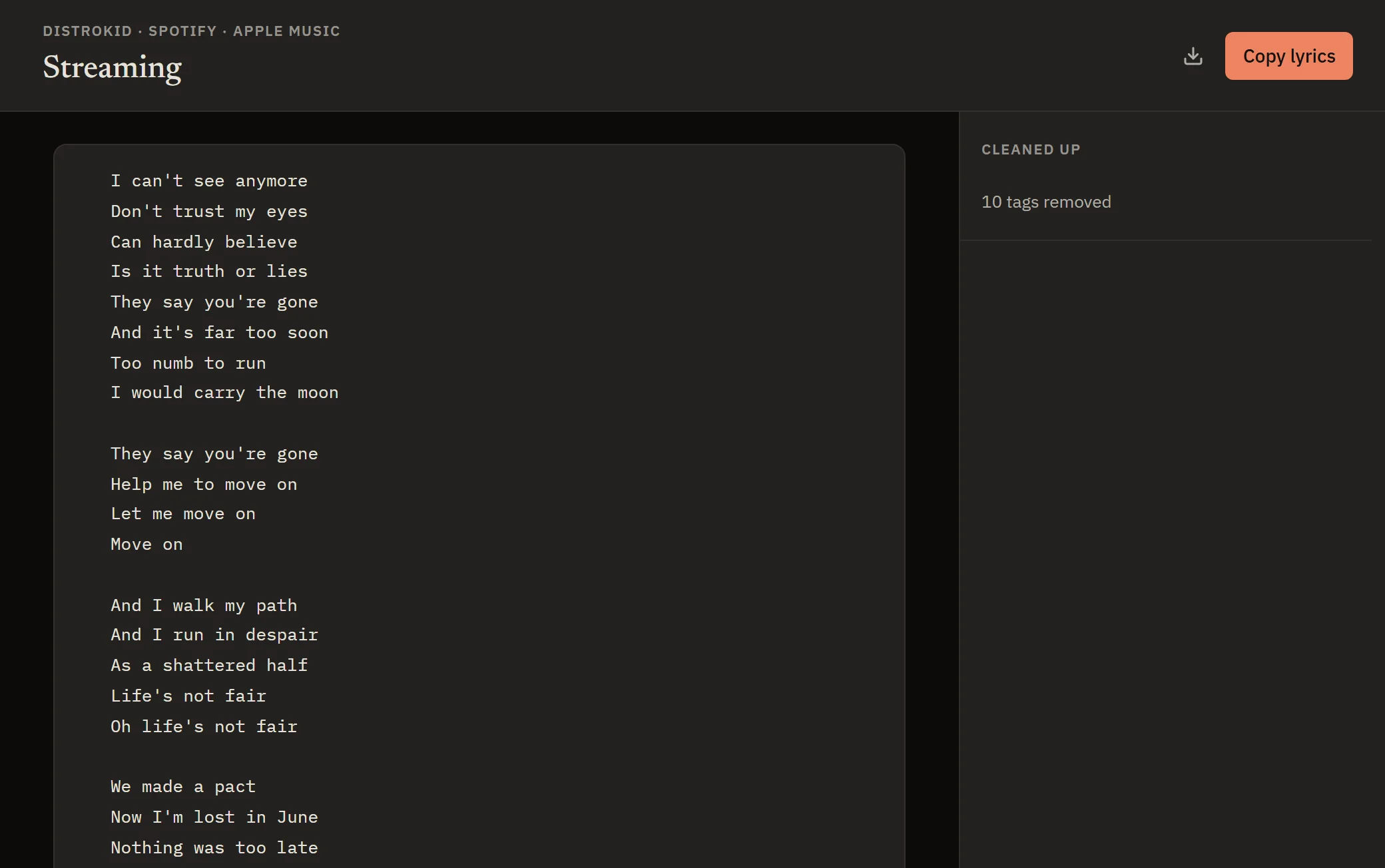
- Streaming: clean lyrics for DistroKid, Spotify, Apple Music and the rest. VersFlow removes tags and cues, punctuation at line ends and double spaces, writes out repeats like "x2" and capitalises line starts. On the right it lists what it changed, such as "6 tags removed".
- Genius: the lyrics with English section tags, the way Genius wants them.
Social
- Video description: the description for YouTube, laid out by your template. If you like, the AI fills in a summary, a lyric excerpt and hashtags; the fixed parts stay yours. To write it all yourself, click Write my own.
- Captions: a set of short texts for Reels and Shorts, five about the song and two theses, also by your template. Take what fits. On the left the chosen caption stands on a phone, cut the way a feed cuts it: your hook has to come before the "… more". Click another in the list to see it there; Copy caption at the top copies the chosen one.
- Time-lapse video: a video of how your song was written (see below).
- Picture: a few lines as a picture, the way the editor shows them (see below).
- Lyric video: a clip of your song with the sung lines on screen, from your MP3 and LRC (see below).
The lyric video: your hook with its sound
For a clip on TikTok, Instagram or YouTube Shorts, or a video of the whole song on YouTube, you need two files you already have from Suno: the song as an MP3 and the LRC file with the times of its lines. VersFlow finds your sections in them, and the chorus, any other part or the whole song becomes a portrait or wide video with its sound and the sung lines on screen.
Under Social, choose Lyric video.
Drag the MP3 and the LRC onto the page, or click Choose files. If you have the "Word by Word" LRC from Suno, take that one: then every word appears just as it is sung. An LRC of another song says "doesn't match the song". No LRC? The MP3 is enough: you give each line its start with Enter as the song plays (see below).
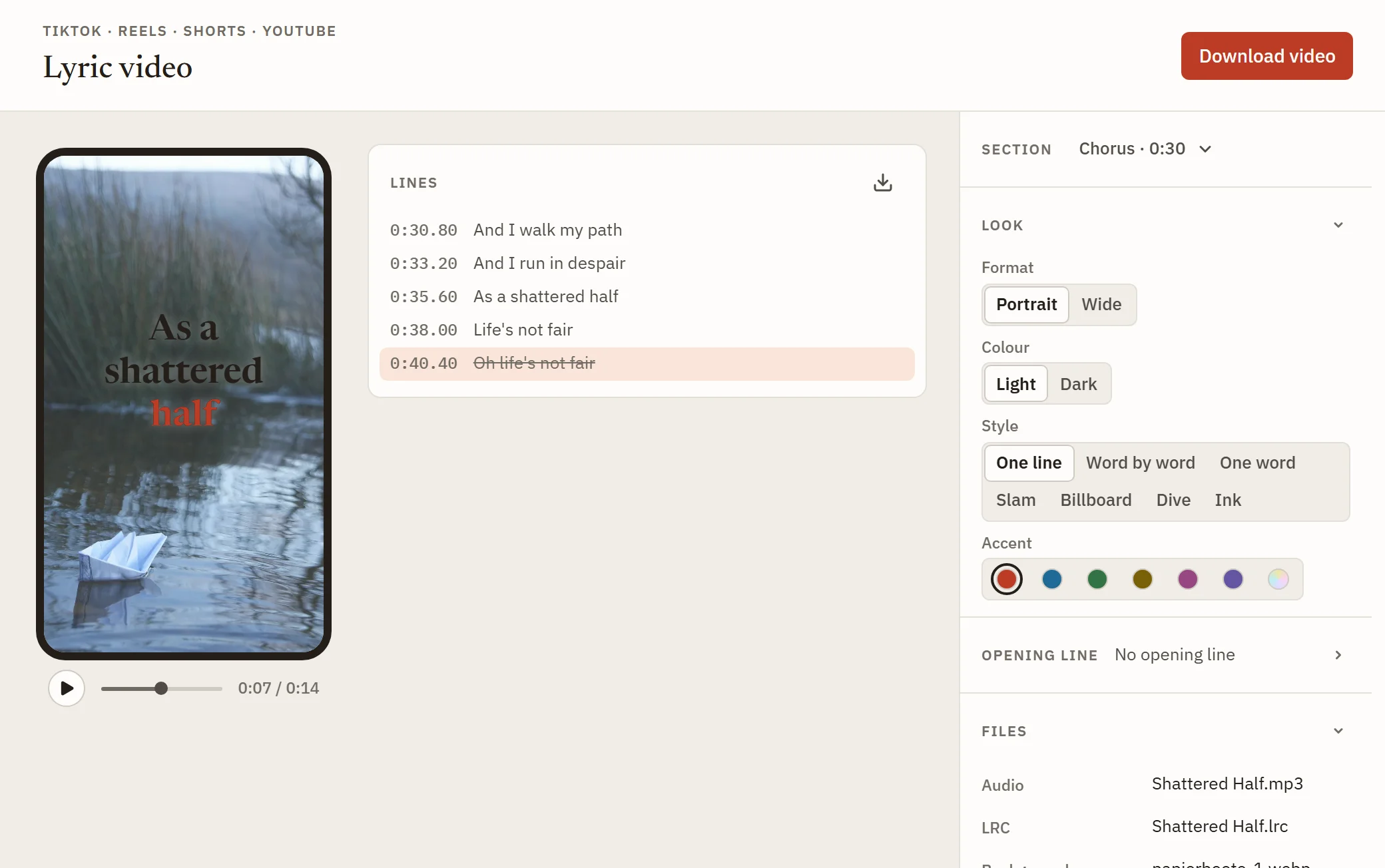
Under Section, the first chorus or hook is already chosen. A section you sing more than once is listed for every time, such as "Chorus · 0:48" and "Chorus · 2:01". At the very end is Whole song. How long the clip is shows at the player.
Under Look you set four things. The arrow folds the section, which then shows only what is chosen; Opening line and Files fold the same way:
- Format: Portrait (9:16, for TikTok, Reels and Shorts) or Wide (16:9, 1920 × 1080, for YouTube). Every style is set for both, calmer and smaller in wide, where the video fills a whole screen. A whole song in wide opens with its title and, below it, your artist name from the settings, and runs to the end of the song. For a whole song, Billboard and Ink give each section a wall or a sheet of its own in both formats.
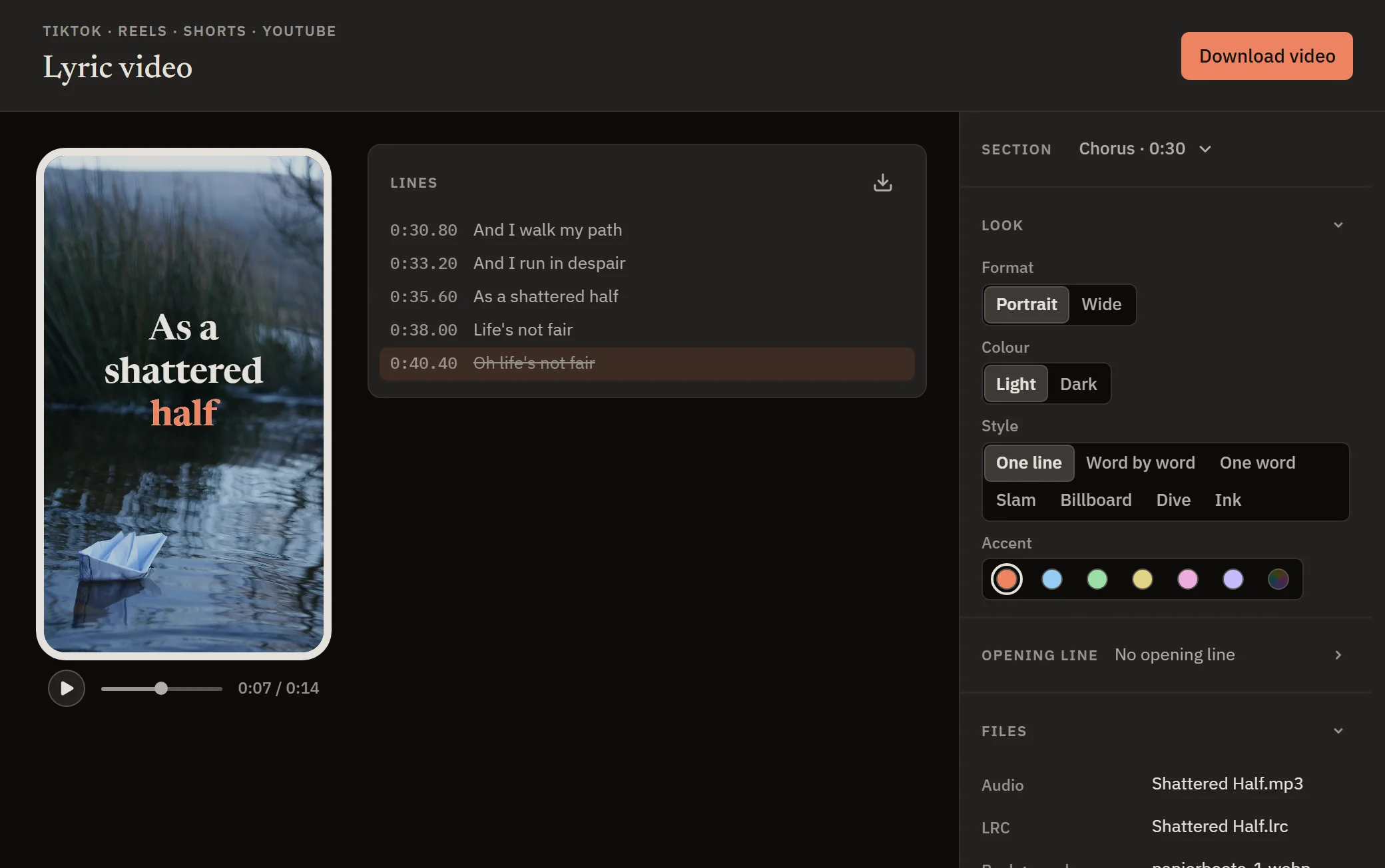
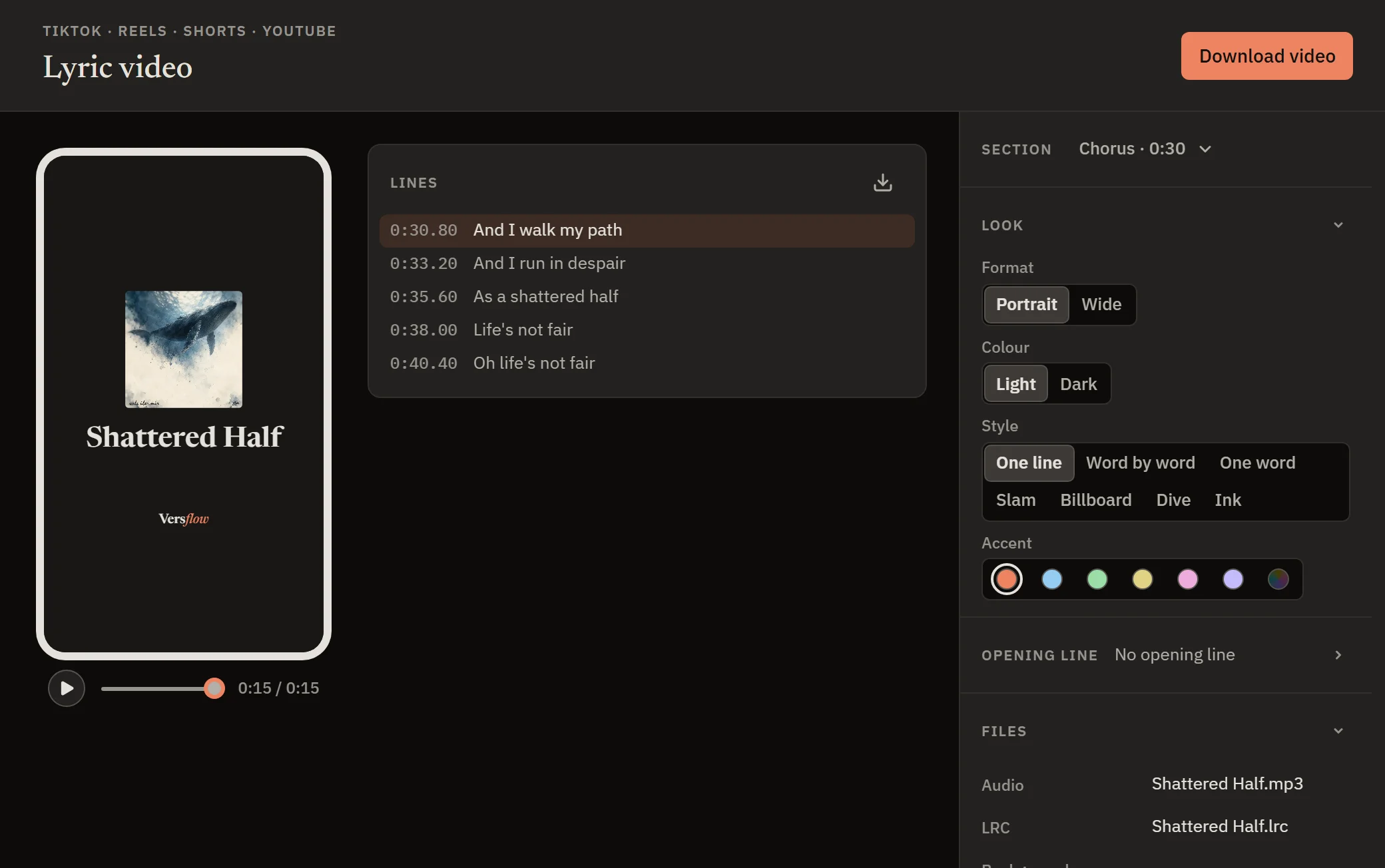
- Colour: Light or Dark, with a picture as a veil over it.
- Style: One line (large, the sung word lights up), Word by word (the line builds as you sing) or One word (only the word being sung, as large as it fits). With motion: Slam (each line a poster, the words slam in), Billboard (every line on one wall, the camera travels along), Dive (the camera dives through a letter into the next line) and Ink (handwriting on paper, with splats and running paint). Each style brings its own type.
- Accent: the colour of the sung word: terracotta, one of five more colours, or your own with the last dot. If it is too light or too dark for the background, VersFlow adjusts it until it reads well. If your LRC has times for lines only, the last large word of each line wears the colour.
If your song has a beat, the lettering pulses with every kick, as hard as it is played. In wide it pulses only lightly; a soft edge round the picture breathes with the beat instead.
For a background, drop a picture or a video on the video or, on the right under Files, on the Background row, your cover for instance; a click on the row opens the file picker. The camera moves in on it slowly, and back out again with each new section. If the video holds your song, a music video say, VersFlow lines it up with the clip by its sound: its cuts then fall where they fall in the song, and the background's file under Files says "in sync with the song".
You can take several pictures and videos too: each file gets its own Background row, with an empty one below for the next. They take turns on the song's beat, in the order of their rows, and each new section brings the next one. To change the order, drag a row to another place, or use Alt ↑ ↓. If the changes fall beside the bar, press T while it plays, on the 1 when you count 1-2-3-4: the background changes at your tap, and the changes count on from there. No video plays longer than it lasts, and one that has had its turn goes on where it stopped. The style brings the transition: One word, Slam and Billboard cut hard on the beat, the others fade over briefly. The files stay where they are; VersFlow copies nothing.
A short video to close with goes on the Outro row: drop it there or click. It fades in after the last line and the VersFlow mark, the clip runs on for just as long, and its own sound stays out.
If your song has a cover (in Song info), every lyric video ends on it: after the last line the cover fades in, with the title and your artist name from the settings under it. That is what people look for when they search for the song on Spotify or YouTube. The clip runs a second longer for it; an outro comes after.
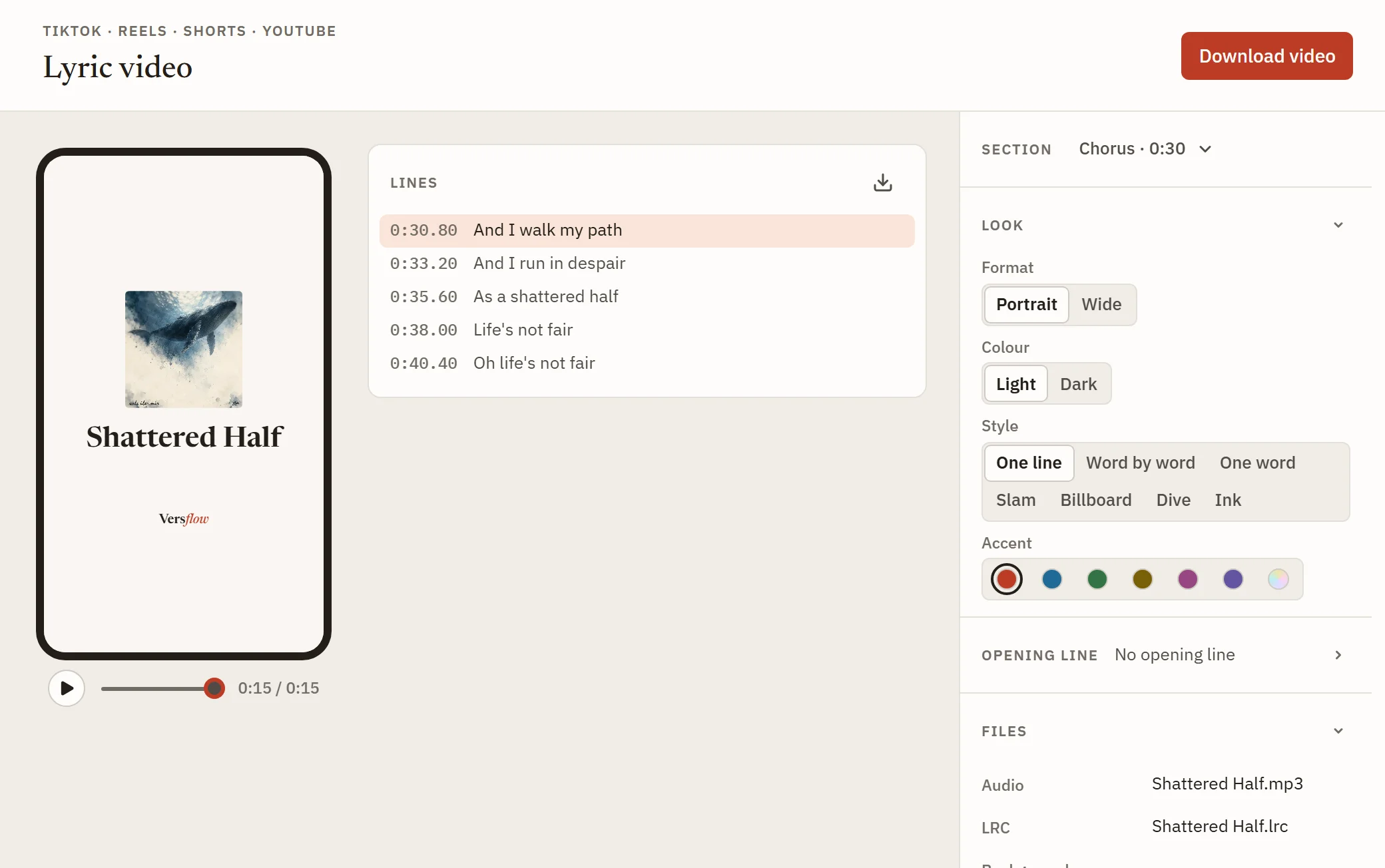
Under Opening line (folded at first) you can write a sentence that stands big in the first seconds, before the first line. If you already have captions under Captions, three of their first sentences are offered there, the rest behind "more".
Download the video with Download video at the top right. On a phone you share it straight away.
If the song has a folder (see "Files" below), the lyric video takes its files from there: the song (the MP3 before the WAV), the lyrics and the cover video. The folder icon beside Download video saves the video in that folder, named after its section.
A new file replaces the old one of its kind. On the right under Files you see which files are in the clip, and the × takes one out again. If an LRC doesn't match the song, that is said under its name.
The video always shows your lyrics. The LRC gives only times: a line of your song gets the time of the LRC entry that starts with it. The LRC's typos, a credit at its end or a link don't matter. Where the LRC holds several lines in one entry, the others have no time yet. VersFlow guesses no time: a line without one stands with "–:––.––" in the list and is not in the video.
Timing lines. Play the song and press Enter just when the chosen line starts. The chosen line without a time shows "↵"; after it, the next one is chosen. The keys are in the status bar at the bottom. When you save the LRC, only the lines you timed go into it; load it again later, and you go on where you stopped. To split a line for the video only, make a variant of the song and split it there.
A line comes too early or too late? Beside the video, under Lines, the clip's lines stand with their start times. Click one, and the clip plays from a second before it. While it plays, the line being sung is marked at its edge; the line you clicked stays chosen. ← and → move the chosen line by 0.05 seconds, with ⇧ by 0.5 seconds. Or press Enter while the clip plays, just when the line should start; the next line is chosen then. A line goes as far as you move it: a line it passes moves along, just behind it. Space pauses and plays on, Ctrl Z undoes a step, Ctrl ⇧ Z redoes it.
A single word is off? With the "Word by Word" LRC, the chosen line's words stand under it with their times, the one being sung lit. Choose a word with a click or with Ctrl← →, and move it as you move a line. Esc takes you back to the line. To put several words right, choose the first, play from a little before it and press Enter on each word as it is sung: each tap sets the word and goes on to the next, into the next line too. Words still ahead of your tap move along behind it, so one pass is enough.
A "!" at a line? Suno sometimes loses the voice where it is quiet or layered. It then sets the words it missed too early, crammed together, and holds one word until it finds the voice again; in the video those words flash by. VersFlow marks such lines with a "!" and its words with an underline. Press R or click the "!": where the song sings the same words elsewhere (a Chorus), the words take the times they have there; otherwise they are spread by their syllables. Listen, and tap what is still off. Where words are far too quick to be sung and no word is held, the "!" only marks them: tap them anew.
The text should leave in a pause? Press E while the clip plays, just when the line ends. A Pause then stands under it with its time. You move it as you move a line, and Del takes it out again.
A line should not be in the video at all? Suno sometimes sings more than you wrote: an echo, an "oh-oh", a second voice. Choose the line and press Del. It stays in the list, struck through and with its time, and the video shows nothing there. Press Del again to bring it back. The LRC stays as it is, and VersFlow remembers the line on this device, also after a reload.
The icon next to Lines downloads the LRC, in your lines and with your corrections. If the song has a folder, the folder icon beside it writes them straight into its LRC. Your corrections stay when you close the export, but not when you reload the page.
For the text that goes with the clip, copy a caption under Captions, then share the video: the caption is on your clipboard when the app opens. Files you drop here are not stored by VersFlow. They stay in your browser until you reload the page. What should stay goes into the song's folder under Files.
The time-lapse video: your song in time-lapse
While you write, VersFlow keeps your versions in the history. The video plays that history back: your lyrics grow line by line, over days and versions, in portrait format for Shorts, TikTok and Reels. It ends with "Written with versflow.de".
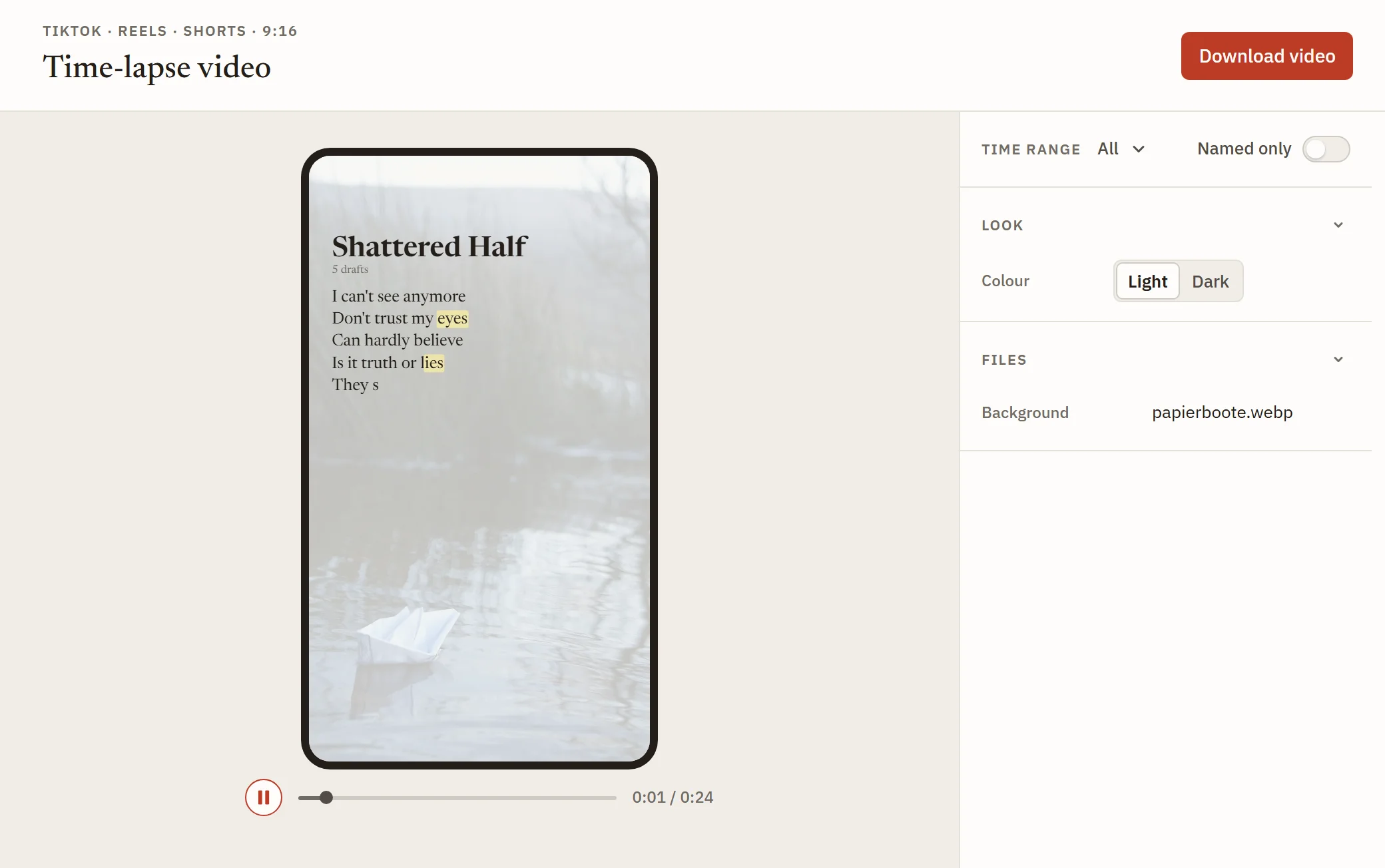
- Under Social, choose Time-lapse video. The preview plays right away; a click on the bar jumps to that moment.
- Under the time range, choose which part of the history goes into the video: all of it, the last 7 or 30 days, or a range of your own. Named only shows just the versions you named, say "First draft".
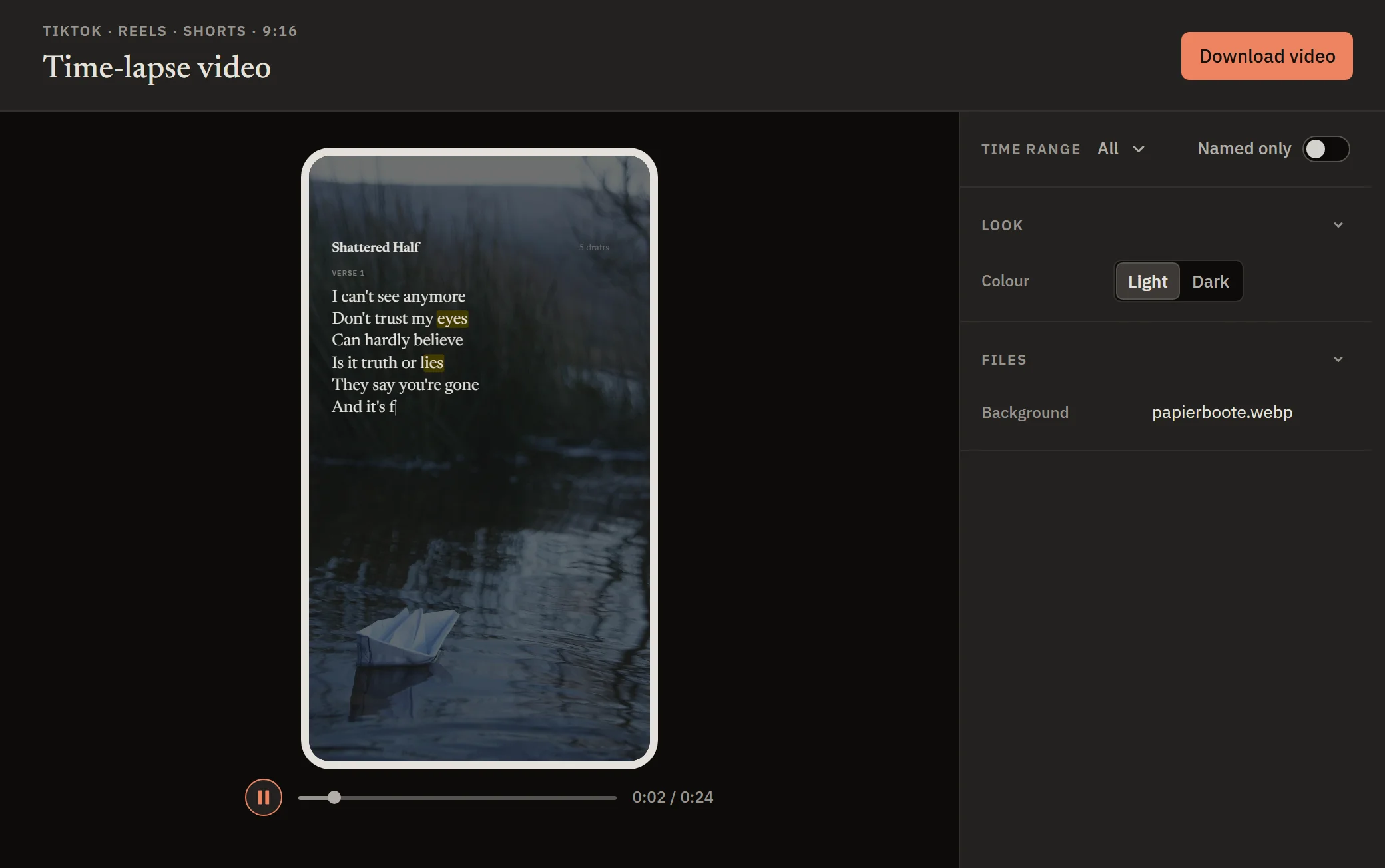
- Under Look, choose Light or Dark as the Colour.
- For a background, drop a picture or a video on the video, your cover for instance, or click the Background row on the right under Files. A thin light or dark veil lies over it, so the picture or video looks almost as filmed; every word carries a glow in the paper's colour that keeps it readable. The camera moves in on it slowly, and back out again at each jump in time. A video plays without its sound and starts over when it ends. If the song has a folder, the video takes its cover video from there, otherwise its cover.
- Download the video with Download video at the top right. On a phone you can share it directly. If the song has a folder, the folder icon beside it saves the video there as
timelapse.mp4.
The more often you keep a version along the way (Ctrl + S), the more steps the video shows. More about the history in Versions and variants.
An older song without a real history has a Writing row under the time range. Re-create makes a calm film from your finished lines: the hook first, the rest in stages, a new run with each click. It shows no days or versions, as there were none to see, and nothing goes into the history.
The picture: a few lines as you write them
Sometimes you only want to show one spot: the new hook to a co-writer, the chorus in a story, the verse a blog post is about. The picture shows it the way you see it in the editor, with syllable counts, coloured rhymes and the rhyme letters, plus the song title and a small VersFlow logo.
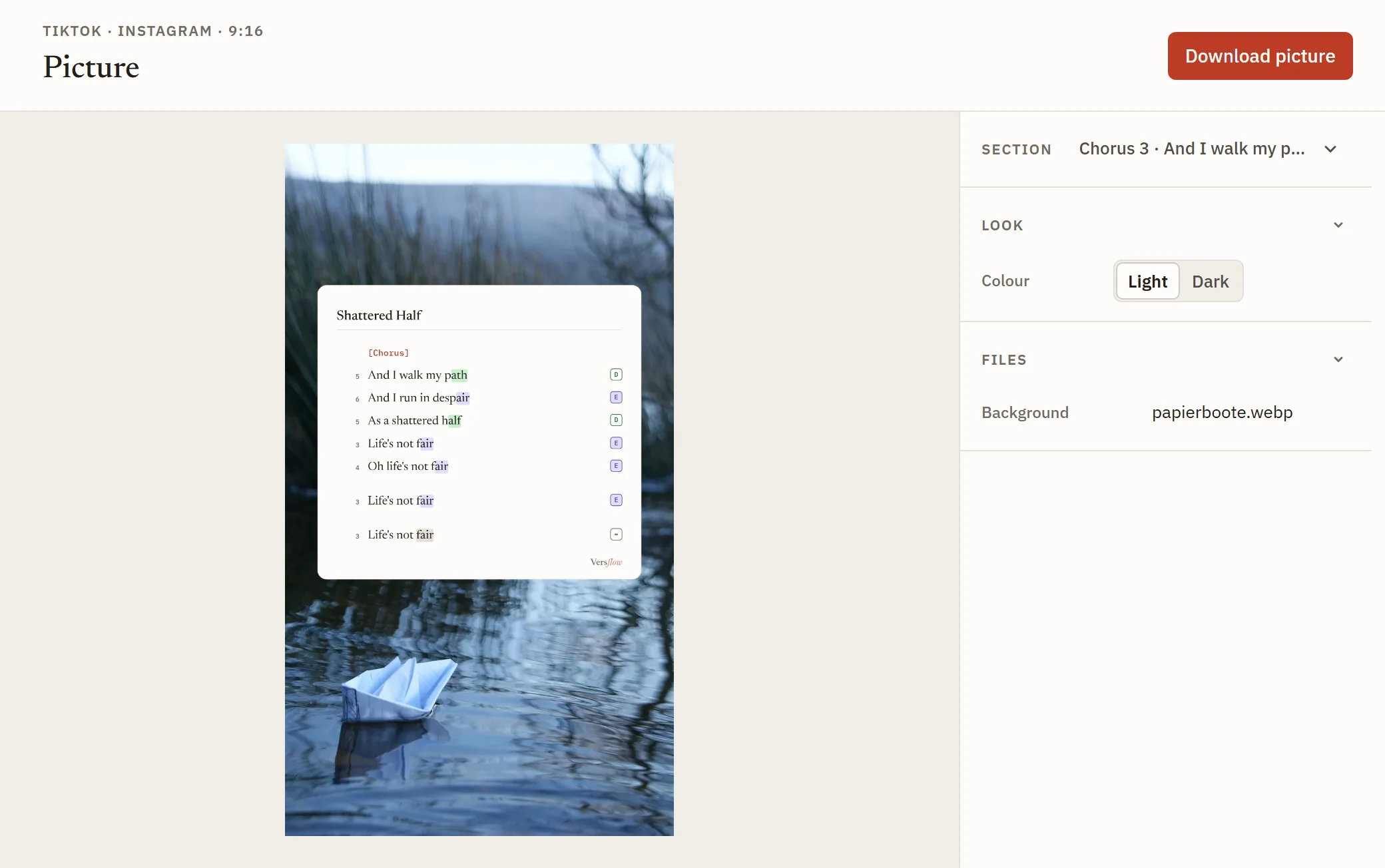
- Select the lines you want to show, or put the cursor in their section.
- Press Ctrl + K and choose Share as image. Or open the export and pick Picture under Social.
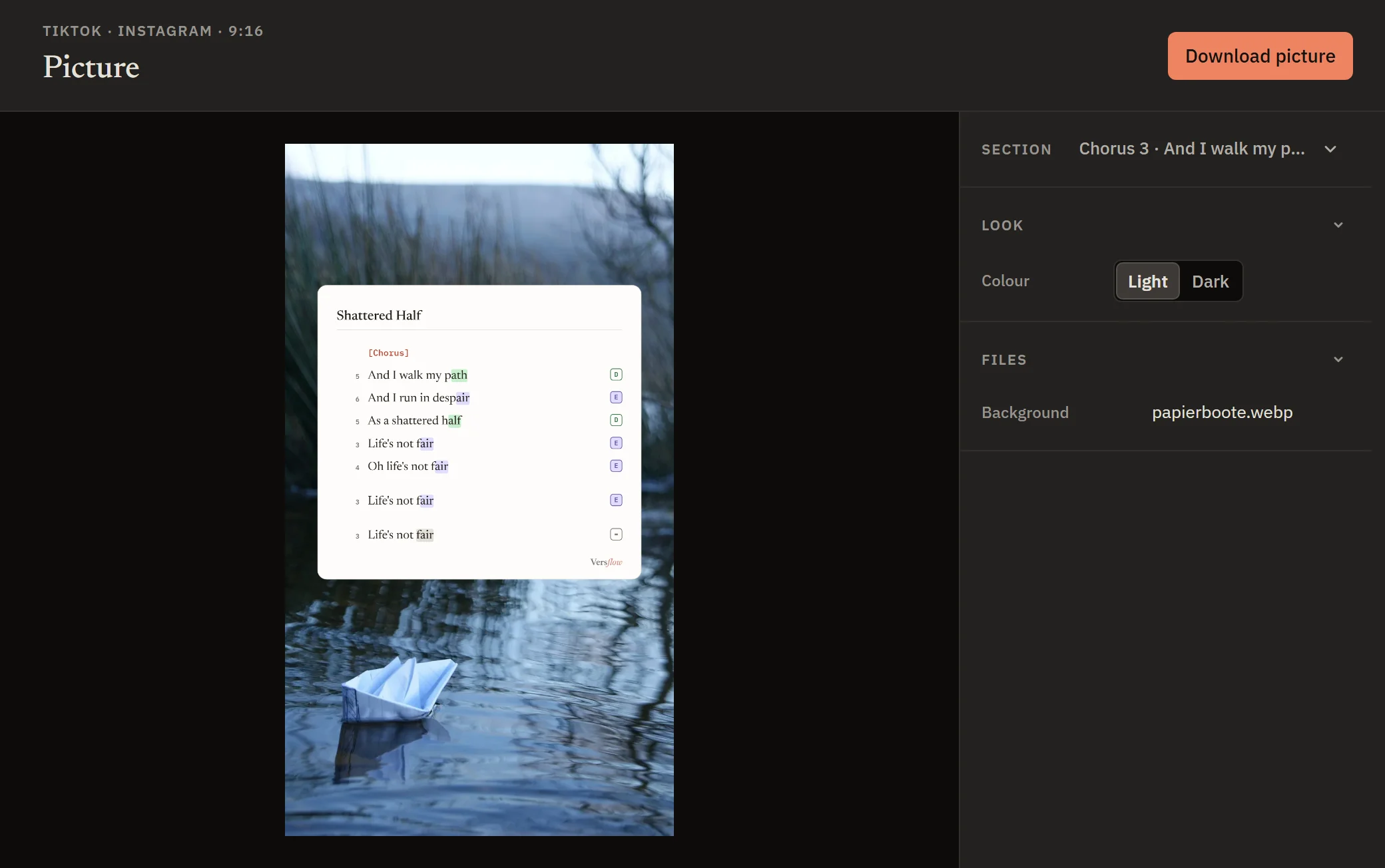
- Under Section you can pick another section of the song. If you selected lines, they are at the top as Selection. Under Look you pick Light or Dark as the Colour.
- For TikTok, drop a photo on the picture, your cover for instance, or click the Background row on the right under Files. The picture then becomes 9:16: the photo fills it, sharp, and the card with your lines stands unchanged in the middle, clear of TikTok's buttons and caption. If the song has a folder, the picture takes its cover from there.
- Download the picture with Download picture at the top right. On a phone you share it straight away.
What you have hidden in the view, such as internal rhymes or the syllable counts, is left out of the picture too. Every line stays one line: a long line makes the type smaller, many lines make the picture taller.
Suggestions from the AI
With a free account you can have the texts around your song suggested. You choose, you change, and none of it touches your lyrics.
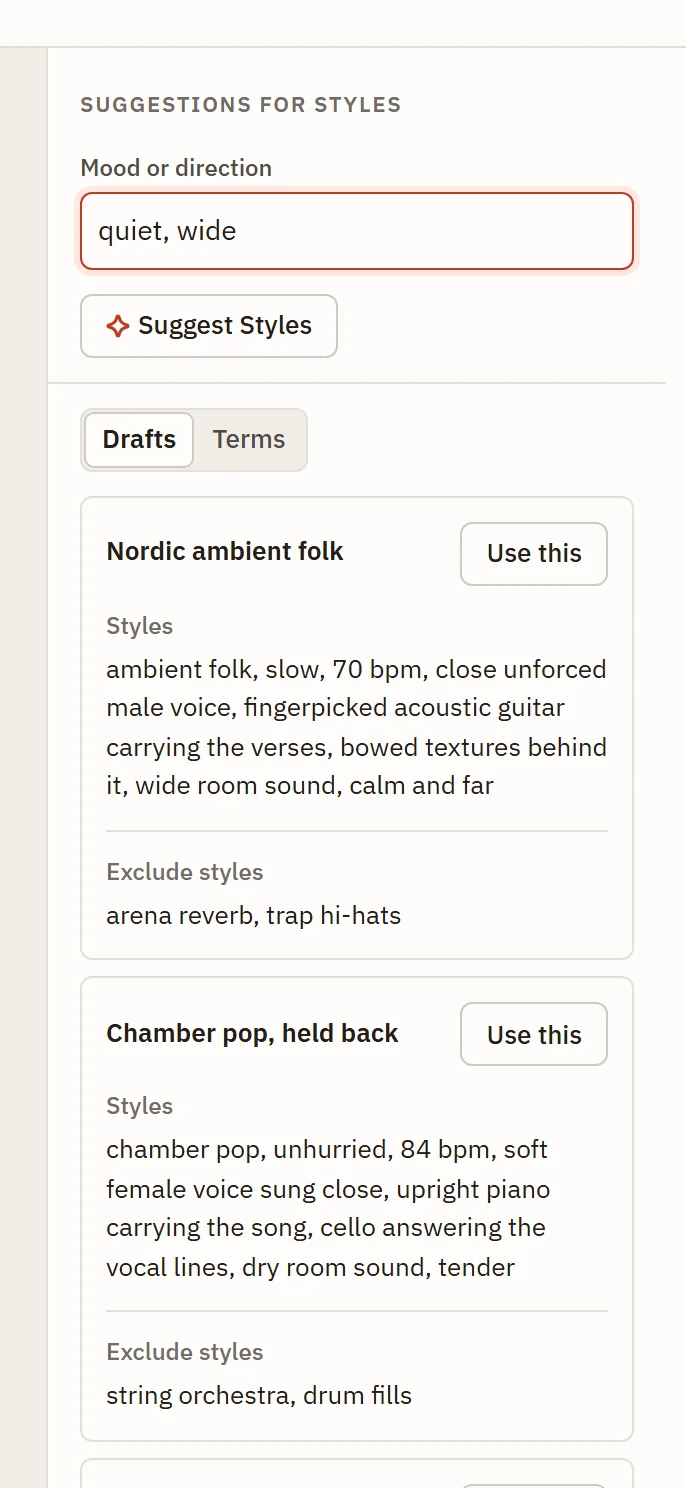
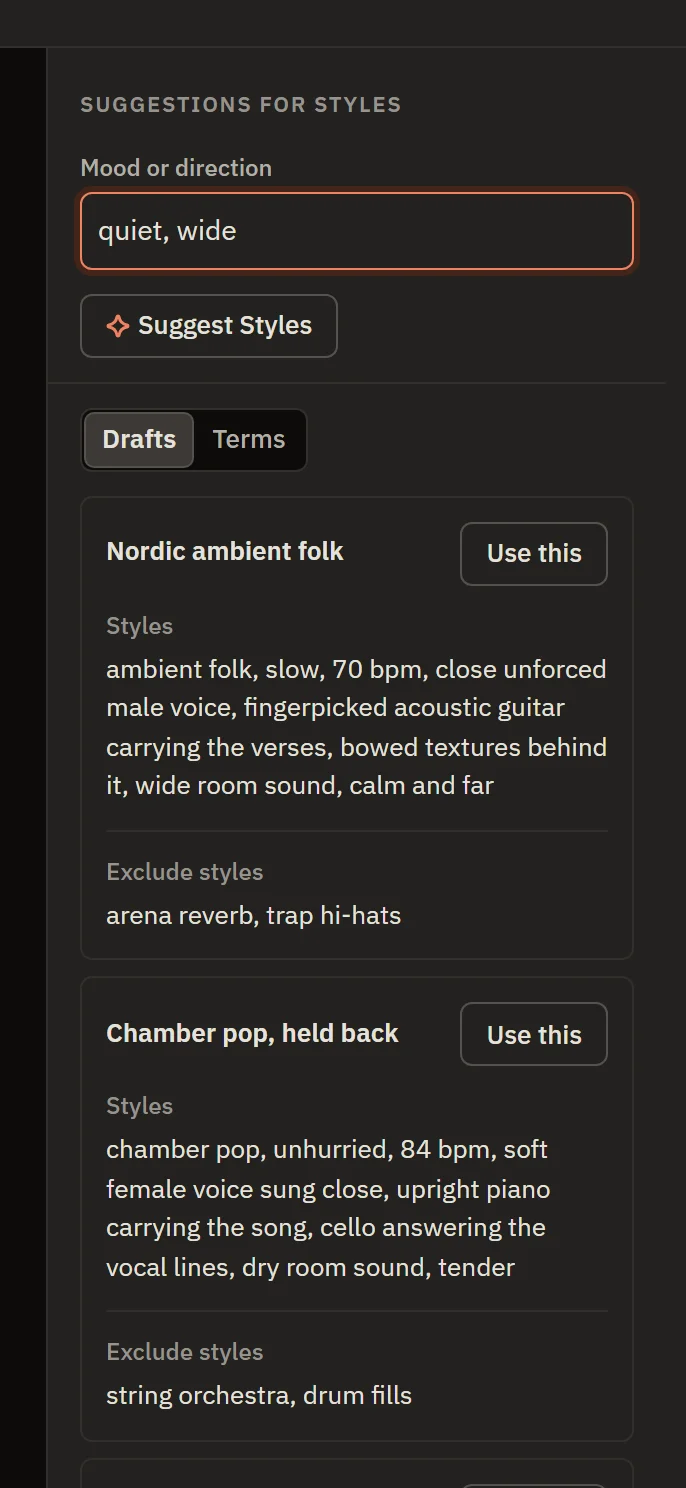
- Styles: under Create song, Suggestions for Styles stands on the right. Enter a mood or direction, say "quiet, wide", or a reference like "like their early stuff"; names never appear in the result. You get three drafts with Styles and Exclude styles, and under building blocks single terms by genre, tempo, instruments, voice, production and mood. One click takes a draft into both fields.
- Caption: under Lyric Box, Suggest caption gets three suggestions from the AI in your song's tone. They stand below the field; one click takes one.
- Video description: in the export, Suggest description fills the AI placeholders of your template: summary, lyric excerpt, hashtags. While there is no description yet, the button stands in the middle, then on the right.
- Captions: Suggest captions fills a set of seven captions, five about the song and two theses. Here too the button stands in the middle at first.
Each of these actions sends only what its tooltip says, and only when you start it. More in AI as a sparring partner.
Files: the song's folder
In Chrome and Edge on a PC, every song can have a folder on your computer for everything made for it: audio, LRC, cover and videos.
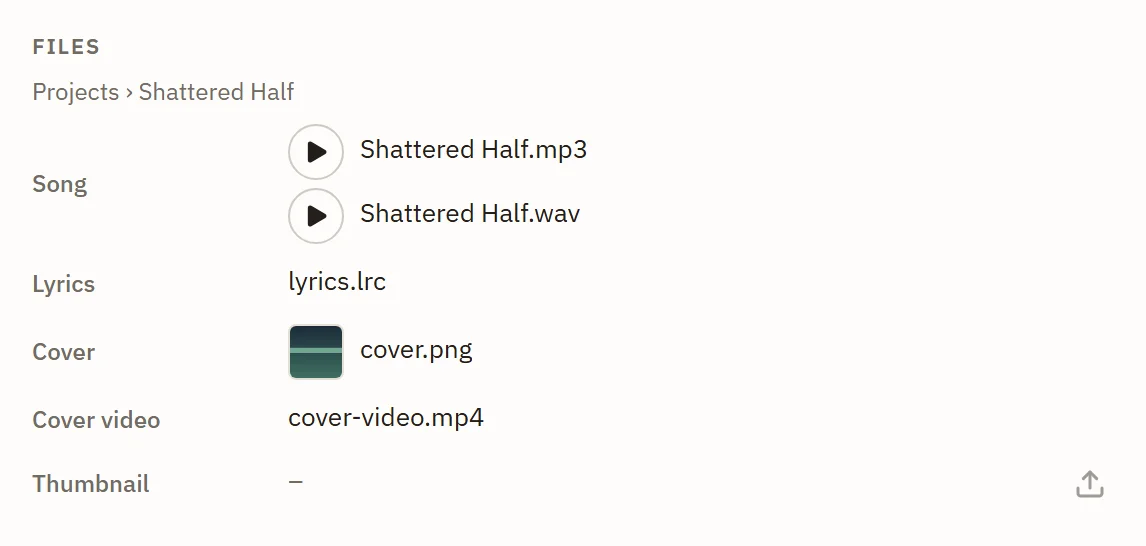
- In Settings under Data & backup → Folder for your songs, choose the folder your songs live in. Each song gets a folder in it, named after its title. Only then does the export's Song & files show the song's Files at the top, with a line for each kind: song, lyrics, cover, cover video and thumbnail.
- Drop a file onto its line, say your MP3 onto Song. Or click an empty line, or the icon at the end of a filled one, and choose a file.
- VersFlow copies the file there, under a name that says what it is:
Shattered Half.mp3,lyrics.lrc,cover.png. The original stays where it was.
The song plays right there with ▶, the cover and the thumbnail show small. The × beside a file takes it out of the folder; Undo in the message brings it back. Above the list it says which folder the files are in.
- Your artist name from Settings under "Publishing" goes in front of the audio files:
Your Name - Shattered Half.wav. - If the folder for your songs already has a folder named like the song, VersFlow takes it and recognises the files in it by their names. Other files in it stay as they are.
- A new file replaces the old one of its kind. The song can be there as an MP3 and a WAV.
- Videos you save into the folder from Export are there too, but not in the list. Lyric videos are never replaced: they are named after their section, such as
lyric-video-chorus.mp4, and a second one gets a number. - If you rename the song later, the folder and its files keep their names. A song without a title doesn't get a folder yet.
- The files stay on this PC; they are not synced. You change the folder for your songs in Settings.
- After the browser restarts, it sometimes asks again whether VersFlow may use the folder. Files then shows a link for that.
The lyric video takes its files from the folder, and you save videos there (see above).
Good to know
- If the analysis still has hints, their number stays in the status bar at the bottom, in the export too. One click takes you there, in case you want to change something first.
- The export keeps everything you set until you close the song: files, section, look. It has an address of its own, such as
…/export/lyric-video, and opens on the same destination after a reload. - Every export is kept in the History with its destination, so later you know which version went where.
- The videos and the picture are made in your browser. Your lyrics, MP3 and LRC don't leave your device for them.